 Windows 10 is, in some ways, the least WIMPy version of Windows to date. If you’re not familiar with that term, it once stood for Windows, Icons, Menus, Pointer, in other words the same thing as a gooey.
Why so? Well, it’s got touch baked in for one, and that means the whole pointer bit is less relevant. And although windows (with a small “w”) are still there, even more so than in Windows 8, icons and menus might also be a bit different too.
That said, there are some good ol’ fashioned UI features in Windows 10 that might not be obvious to some users.
 Minimising everything – easily done; just press WindowsKey+D like in previous versions of Windows. Only works if you’re not in Tablet Mode, too. There’s another way, too, that was also present in Windows 8, but it’s even more relevant into Win10 – if you’re not in tablet mode, and click (or touch & hold) on the title bar of an open window then shake it from side-to-side using mouse or finger, it will minimise everything else except that window. Repeat the process on the same window to reverse the effect and restore everything else.
Jump to settings by pressing WindowsKey+I – especially handy if/when your PC decides not to show you search results like “windows update”. Launch settings (the new control panel) instead and try from there.
Task Bar icons can be activated quickly – either programs that are pinned there, or just apps that are running. Press WindowsKey+number, where number is the index of the icon along the menu, eg 4 would be Groove (and it’s already running, as indicated by  the line beneath), while 3 would launch OneNote (which isn’t already running).
Power User menu – another hangover from Windows 8 but still a lot of people don’t know about it – press WindowsKey+X to launch the pop-up menu from the bottom-left (as shown >>). Especially handy if you need to launch an elevated (ie Admin level) command prompt, though you could do the same by pressing WindowsKey, typing CMD then CTRL+SHIFT. It’s horses for courses.
Notifications / Action Center – to jump to the new notifications menu (or Action Center), press WindowsKey + A. Nothing more to see here, really. Move along.
Move Windows around – press WindowsKey and use the arrow keys to move your current window around. Press the SHIFT key as well to flick it between monitors if you have more than one. Simple.


 So,ToW reaches its 300th weekly missive. In the first weeks and months following the inaugural ToW,

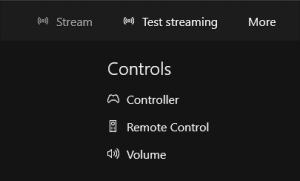 After firing the console up and/or connecting to it, you’ll be able to do a number of things, like use your PC as a media remote or mimic the Xbox controller with your mouse/touch, but given the scenario we’re interested in, let’s try testing the network for size.
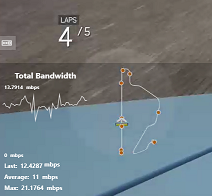
 Once the streaming has started, if you move your mouse or finger to the top of the Xbox app window to display the in-app menu, you can change the quality of the experience, by clicking on the icon on the top right. The multi-line icon to the left of that will show you real-time streaming data in the bottom left of the screen, so you can monitor the performance of the network and make sure you’ve got the right level of quality.
 This weekend sees most of Europe moving from summer time (or
  Outlook – whenever an appointment is created, its date and time are recorded as an offset from
  telling Outlook by clicking the Time Zone icon in the ribbon, and then selecting the appropriate TZ – especially useful if you’re crossing between time zones and don’t want to run the risk of horological befuddlement.
 If you’re booking a load of appointments in another time zone – eg. you’re working in another country for a few days and creating appointments with people in that locale – then it’s even worth switching the TZ of your PC whilst you do the diary-work, to save a lot of clicking around in setting the appropriate time zone specific to each meeting.


 using the built-in OneDrive client in Windows 10 (look for the white cloud in your system tray, if you’ve set up your Microsoft Account within Windows 10).
 You can also see what other people have shared with you by looking
  sends the sharing email, for example), it will take you straight into that list of shared content, and (again, if you have Edit rights), will give you the option of adding that folder to your own OneDrive. As well as appearing in your Shared list, the folder will now show up in the regular list of folders you see when you look in OneDrive, even though it doesn’t belong to you.
 Choose Folders, you’ll see the newly-shared folder appear in the list of folder available to sync, just as if it belongs to your own OneDrive storage. Check the box next to the new content to keep a synchronised copy along with your own OneDrive content. Looking at the shared, synced files in Windows Explorer, you won’t be able to see who originally posted the file into the folder, but if you view it in the browser, then it’s possible to see that info.
