 Following on from ToW #135, which introduced the “Peek” capability in the flat and shiny-shiny Outlook 2013, this week we’re looking at another couple. If you use Tasks, the ability to quickly see what’s due and to create a new one might be a useful feature.
 Hover over the Tasks option at the bottom of the main Outlook window, and you’ll see a pop up “Peek” (right click on the Tasks option and you can “Pin the Peek” – or show Tasks off to the right of the current window, regardless of which folder you’re looking at. In the pop up window, you can mark tasks complete, you can create new ones, and if you double-click on one of the list, you’ll open the task in a new window.
 The Calendar menu option also lets you Peek (as described in #135), while the remaining Peek-able option is People, the selection that was previously known as “Contacts”.
Peek on People, and you can enter someone’s name to find them – akin to searching for them in the Lync client by typing the name. You can also add people to a favourites list – although it says “anywhere in Office”, it’s not quite so straightforward… at least not yet.
 Lync 2013 has a “Favorites” list that is a different thing, but if you right-click on someone in Outlook, you can add to Favorites and then be able to
 stalk contact them easily in future by Peeking on the People tab to see their current Lync status, and view the Lync Contact Card easily, which will afford you all the variety of ways to contact them.
The Peeks functionality doesn’t really give you anything you couldn’t quickly do with other means – press CTRL-2 to show Calendar, CTRL-3 to show People, CTRL-4 to show Tasks for example – but it brings some common functionality that bit closer if you’re using a mouse.


 descriptive roots in an antiquated process. A bit like a floppy disk as the “Save” icon, or an envelope for the email/send functions, the scissors used in Cut refer back to the old method of compositing printed materials, in the days when editors would literally make up a newspaper or magazine page by chopping up other sources and sticking them onto a master copy.
 taking a while (maybe even “Contacting server for information…” too), then there is an alternative, especially if you don’t need all the formatting to come with the text.
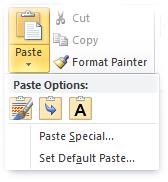 When in your favourite Office application, rather than pressing CTRL-V to paste (or just clicking the Paste icon), try clicking the down arrow under Paste in the Ribbon, and you’ll see various options – Paste Special offering the same gamut of choice as historically has been offered in previous Office versions, but the icons beneath provide a quick way to getting to the most common options.
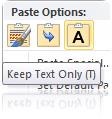 play – press K if you want to paste and keep the source formatting, M if you want to merge the two formats, or simply T to keep the text and the text alone.


 Ever since the 3rd party “Lookout” add-in was built for Outlook about 8 years ago, the pilers have inherited the earth. That’s pilers. No connection with

![clip_image001[5]](https://msdnshared.blob.core.windows.net/media/TNBlogsFS/prod.evol.blogs.technet.com/CommunityServer.Blogs.Components.WeblogFiles/00/00/00/48/08/metablogapi/6562.clip_image0015_5ADBB514.jpg "clip_image001[5]")


