Tip o’ the Week #77 – Saving docs straight to SharePoint

clip_image002Here’s a simple tip inspired by Luke Debono, who was asking how he could save directly from within an Office application to our departmental SharePoint site, using Office 2010 and SharePoint Server 2010.

clip_image003Now, if you open a document from a SharePoint site then you might get to view/edit it in a browser, or perhaps open and edit within an Office application. On the backstage/File menu, you’ll see a few clues that the document is on a SharePoint site – like the location, or (depending on whether the functionality is enabled on the SharePoint) the ability to check the document out & in, see previous versions etc.

clip_image005If you’re writing a new document and want to publish it directly to SharePoint, you can do so directly from within Word, Excel & PowerPoint – go to the File menu and select the Save and Send option, at which point you’ll be able to save it straight to the SharePoint of your choice, maybe even one of the more recently used sites…

URL or UNC? U B the judge

If you’re working outside of Office applications but still want to save your stuff straight into SharePoint (your MySite for example?), then it’s still possible. SharePoint is clearly accessible via a URL (eg http://sharepoint etc), but you might not know it’s also available via the old-fashioned “UNC”…

clip_image006universal naming convention
A naming convention for files that provides a machine-independent way to locate the file. A UNC name usually includes a reference to a shared folder and file accessible over a network rather than a folder and file specified by a drive letter and path.

UNCs were used in the old LAN Manager and NT days, to connect to file servers. They took the form of \\server_name\share_name, characterised by the phrase “whack whack” – as in “connect to “whack whack server_name whack share_name”…

In this instance, you can generally convert the SharePoint URL into a UNC by ditching the http:// piece and substituting forward slashes to back-slashes. If you’re in the File dialog of any application, you can type a UNC into the “File Name” box and hit Save or Enter, then the File dialog will be re-pointed to that location… allowing you to save your file (under a chosen name) into that location.

Once you’ve pointed the File dialog to browse into your SharePoint, you could even add it to Favo(u)rites to make it easy to get there in future… bearing in mind if you jump straight to \\sharepointemea\00sites\sitename then you’ll see all the other SharePoint folders that go to make up the site.

Tip o’ the Week #76 – Have you got the Lync effect?

If you’re lucky enough to be using the Microsoft Lync IM & communications platform, it’s worth sharing a few tips on making the Lync client software a little more useful and productive. Let’s kick off with some shortcut keys you might like to try

· WindowsKey + Q – Brings the Lync window to the foreground

· WindowsKey + A – Accepts an incoming “toast”, such as an incoming call…

· conversely, WindowsKey + Esc  – declines an incoming toast

· WindowsKey + X – declines an incoming toast, and sets your status to “Do Not Disturb” (note: Win+X brings up the Windows Mobility Center on a laptop)

From within a conversation…

· … use CTRL+SHIFT+<” and “>” to increase and decrease the size of selected text within an IM input window. So you can emphasis a specific word in larger font – something that there’s no menu option to do…

· CTRL +]” and “[“ – zooms in & out of the text in both the input window and history – useful when showing someone an IM conversation on your screen.

clip_image003· Finally, during a call or conversation, if you press CTRL-N, then a new OneNote page is created with the conversation subject & a list of the participants – perfect for taking clickity-clackety notes during the call. Just remember to mute yourself first!
[Sadly, there is no known mute shortcut key, but many headsets have a mute button or simply click on the microphone icon to mute and unmute]

There are many other keyboard shortcuts – see here – a good one being CTRL+SHIFT+ENTER when in a conversation or when selecting a user from the list; that will kick off a new call, or end any existing one.

Lync Guistic

clip_image004Here’s an addin for Lync that lets you have conversations in different languages, powered by the Bing Translator service. See more on http://lyncguistic.cloudapp.net/

As with any machine translation, your mileage may vary … but if nothing else, it’s a fun way of appearing erudite and cultured (or windswept & interesting) to your colleagues.

The Lync Adoption & Training Kit that this tool is part of, could be a really useful end-user training resource if you’re deploying Lync in your own organisation – it even includes a ready-made Lync custom Intranet site that you could use as a starting point for all your Lync specific training and user readiness materials. C’est magnifique!

Tip o’ the Week #74 – The Age of the Train

Now then, now then… Remember the old 1980’s Jimmy Savill advert for British Rail? RIP, Jingle Jangle Jim.

Well, it  seem that National Rail Enquiries adopted the Age of IE9 to deliver one of their latest consumer-facing web applications. Head over to http://ie9.nationalrail.co.uk to check out live departures and arrivals for your favourite stations, all presented in a slick, Windows Phone 7-style UI.

National Rail has said it won’t be updating the Outlook addin they built for Outlook 2003/2007 (but which isn’t clip_image001compatible with Outlook 2010), however it is possible to quickly add rail travel information to your calendar. If you search for a given journey, then look at the details … click on Add to calendar and the site will download an “ICS” file which IE will offer you the opportunity to open or save. Select Open, and Outlook will create a new appointment for you with the appropriate times of the journey.

clip_image002

Tip o’ the Week #73 – Using Bing Maps in London

clip_image001Here’s a quick but useful tip for Bing Maps (did you know, by the way, that you can jump straight to the maps by entering www.bingmaps.com as the URL? Or if you’ve super-efficient, just type bingmaps into the address bar on IE, and press CTRL+ENTER and it will do the rest for you).

If you’re visiting London and your default language for Bing maps is UK English (you’ll see in the top right if it says “United Kingdom”), then when you view any Greater London location, your default view is the A-Z Maps – one familiar to every Londoner.

The A-Z view shows entrances to Tube stations, and if you click on the regular Tube icon, it will also tell you what line services that station, and displays an overlay of the tube network in the classic colours, but in a way you’ve probably never seen before (ie real geographical distances between stations rather than the well-known Tube map). Zoom out a little and the overlay stays in place, but the relatively cluttered A-Z view is replaced with Bing’s standard maps view.

clip_image002

So what? Well, it lets you see just how close some stations are to each other, that it might be quicker to walk than to go about changing trains… and it also showcases how much better Bing Maps is than Google Maps…

If you have a customer or partner who’s London based, and who uses Google Maps on their website, show this to them and see if you can’t persuade them to switch… Then show them the Birds Eye view and see if that seals it!

Tip o’ the Week #94 – Have you been Mango’d?

clip_image001[4]

This is another out-of-sequence-because-it’s-topical Tip… normal service will resume soon…

I’m glad so many people enjoyed last week’s tip on getting Windows Phone “Mango” and making your own ringtones for it. Yes, ringtone creation is something of a palaver, but brings a sense of satisfaction that refreshes the parts other fruits cannot reach.

As you use Mango (or Windows Phone 7.5 to give it the full handle), you’ll see lots of incremental improvements in the way things work – the threading of emails, the deeper integration of Windows Live & Facebook in messaging, adding LinkedIn & Twitter etc.
There are a few major areas that are worth exploring though.

clip_image001Multi-tasking

One of the best under-the-covers features is the ability to jump between running (multi-tasking) applications. Want to copy a URL from Internet Explorer and paste it into an email…? Well, instead of going back to the Start Screen from one app to then start another, just press and hold the Back button on the bottom of your phone, and you’ll see the “App Switcher” – allowing you to swipe across and dive straight into another running application. ALT-TAB comes to your phone!

Apps that are written to take specific advantage of Mango’s multi-tasking can run in the background too… if you look in settings -> applications under background tasks, you’ll see a list of which apps are running in the background, and if you press advanced you’ll see which ones are able to.

The other buttons

It’s worth noting that the buttons on the bottom have changed their meaning somewhat – press and hold the Windows logo and you’ll get to give your phone spoken commands – not all new, but one nice addition is the ability to text someone by just talking to the phone… eg say “text <contact name>”, and then have hours of fun with freeform dictation, tarring with appropriate epithets in the hope that the phone will recognise what you say.

The magnifying glass/search button also changes its behaviour now, so it always takes you to the Bing app, rather than searching within an application. You’ll see a magnifier icon within apps, and tapping on that lets clip_image002you find content in that application.

An example, and another really nice tweak in Mango, is the way it handles the App List (when you swipe right->left on the Start Screen) – if you have lots of apps installed, you can now jump straight to a grouping of apps by letter tile (like you can in Contacts, for example) or can search all your installed Apps, even extending the search to the Marketplace.

The Bing application is very cool now, too – it includes “Local Scout” search functionality that will show you what’s nearby (if you have the GPS function switched on), and will take you straight to the further improved Maps application to show you not only where your search result is, but can show you how to get there. Really very nice.

Internet Explorer

Finally, for this week, there’s the much-improved, hardware-accelerated, HTML5-supporting, mobile Internet Explorer 9. [In some tests, it’s waaaay faster than the iPhone 4 and Android].

clip_image003As well as making it a lot faster, the development team redesigned the browser to make it even less intrusive to the web experience than before – see here for more information. One notable change is moving the address bar from the top to the bottom of the screen – simple usability feedback drove that change.

Incidentally, did you know that when you’re entering an address in the browser, if you press and hold the “.com” button, it will offer a few variants…?

Might just help you get your address there a little quicker…

Tip o’ the Week #93 – Ring the changes with Mango

clip_image001

Windows Phone 7.5 – aka Mango – is here! (Find out what’s new).

I’m publishing this tip out of sequence as I think it is relatively topical and rather than wait until the end of January 2012 – when it would be scheduled to go – I figured it would be useful to share it now.

If your Windows Phone 7 hasn’t already prompted you to update, then it should do so soon. If you’re super-desperately-laser-focused-excited, you might want to follow the steps taken by some enterprising types who have figured out how to force the update to get downloaded.

One of the nice changes that’s been a while coming is the ability to set your own ringtones, so you can pick your phone out from everyone else’s when it starts to ring, after you’ve left it on your desk on the other side of the open-plan office. Choose an appropriate ditty like “The Birdy Song” or “Agadoo” to amuse your colleagues. Or maybe not.

Create your own Ringtones

There are a few rules to follow when making your own Ringtones. Firstly, the music/sound must be MP3 or WMA in format and not copy protected (eg not downloaded with a Zune pass), and it needs to be less than 40 seconds in length and less than 1Mb in size. Finally, it has to have the genre “Ringtone” set within the Zune software, then be synced to the phone.

clip_image004All of this means it’s unlikely that your existing music will be suitable – you’re probably going to need to chop the sounds down in length so you can use them as a ringtone. You could use a variety of software to edit the waveform of a sound file, but a free and simple-to-use download called AVCWare Ringtone Maker* does the trick nicely. Just load up the sound file, mark the start & finish points you want and set the properties of the tune to make sure the clip is small in size (might as well make it mono, and you could probably lower the bitrate to 64). Click on the “Convert” button and in a few seconds you’ll have a neatly trimmed tune.

clip_image002Save the sound file in one of your Music folders, and in the desktop Zune software, you should be able to locate the new file (probably without any of the artist information, but you can edit its title so you know it’s a Ringtone), and set the Genre to be “Ringtone” so when you sync it to the phone, it shows up in the correct place.

Save your changes, now right-click on the song and choose to sync it with your phone. Once that’s completed, go into the Settings on the phone, choose ringtones+sounds and the “Custom” tones should be at the very top of the list. If your new one doesn’t show, then either it doesn’t meet the requirements on size & format, or it hasn’t been tagged properly with the right Genre. The “Ringtone” Genre setting means that your custom ringtones don’t appear within the Music & Videos hub on the phone.


*NB: Internet Explorer identified the AVCWare setup file as potentially suspicious, but it appears to be clean.

Reading Microsoft Tag

Microsoft Tag has been covered in previous Tips o’ the Week, so it’s good to see the Tag reader (and QR Code clip_image005scanner) being built into Mango rather than having to download it separately.

clip_image007To read a tag, simply press the magnifying glass symbol on the front of the phone – this has now changed behaviour so instead of searching within an application, it always launches the Bing search app, which itself has received numerous tweaks. If you tap on the eye icon on the bottom of the Bing app, it will switch to scan mode.

Now, just point the phone at the Tag and if it is recognised then you should see the detail of the Tag appear on the screen – tap on that to action it (eg follow the URL or open the contact information etc). To create tags of your own, check out http://tag.microsoft.com

Tip o’ the Week #71 – Formatting tips for Office apps

In various Office applications, pressing the F4 key will repeat the last command (if possible). Examples could be applying formatting to document elements (like turning text in Word into a header, or the borders of a table), where you could do it once then simply hit F4 to repeat it to other parts.

The uses are myriad – pretty much any repeatable command, from formatting, lining up shapes, table commands – just try pressing F4 to repeatedly do the same thing, rather than having to go back and forth to the menu. Deleting whole columns or rows in Excel is another great use – rather than right-click/delete row for each one, or clicking on the left hand border then pressing Delete to clear its contents, you could do it once then move the cursor to the next row you want to affect, press F4, and Robert’s your auntie’s live-in lodger.

The Tech for Luddites blog described F4 as the “Magic Office key no-one knows about”. It’s been a feature of Office for years. Yet I bet most of the ToW readers haven’t heard of it before…
I hadn’t, until Luke showed it to me…

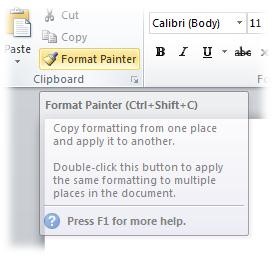
There are other ways to repeatedly apply formatting design – such as the Format Painter, that lets you select something you want to copy (a paragraph in Word, for example), and by clicking the paintbrush icon, you can quickly apply the same formatting onto other selected area – and if you double click the Painter icon, you can keep applying in multiple places until you press Escape. [NB: the screen shot is from Word, where there’s a handy shortcut key to the format painter… sadly, Excel doesn’t have a shortcut so you have to use the menu].

On another note, the Office Labs team has released a great new version of their popular “Ribbon Hero” addin to Office – test your own skills in using Office applications, and maybe find a few new ways to make yourself more productive…

Tip o’ the Week #70 – Windows Phone 7 usage abroad

clip_image002If you’re planning on taking your Windows Phone to sunnier climes over the autumn/winter, this tip might help. One side-effect of going abroad is that the numbers you may have saved in your contacts, won’t be able to dial – 07802 etc won’t make any sense if you’re in the US….

clip_image001One elegant solution to this problem would be to fix up all your contact numbers in Outlook, using a technique discussed way back in previous posts (here and here) to sort out the formatting of contacts’ phone numbers (the E.164 format – such as +44 118 etc – again, something I’ve dealt with before).

Now, Windows Phone 7 has some built-in intelligence to try to figure out what you’re attempting to dial when you’re overseas. It should be switched on by default – to check, go into Settings, then swipe right to applications and clip_image003look under phone, and check International Assist is on.

Allen, being a fiduciarily responsible sort of chap, was concerned that he didn’t want to rack up lots of data charges whilst abroad, and so was keen to make sure data roaming was switched off. This is also the default setting: if you’d like to verify the fact, or if you’d like to switch roaming back on so you can use (at astronomical expense, mind) the phone’s data services whilst overseas, go into Settings, swipe down to mobile network and check to see if roam or don’t roam is set.

When you’re abroad, you might find that you can connect on free WiFi networks instead – go into Settings / WiFi and look for suitable networks. There are various apps which purport to tell you if you’re connecting via GSM/3G or WiFi, however if you switch off Data Connection and/or roaming from the mobile network settings, you can be certain you’re only using WiFi.

There are even tools which promise to do all the “yes, I accept your terms and conditions, yadda, yadda” stuff that you might have to complete in the browser after connecting to Starbucks etc WiFi, before you can use the rest of the internet. As they say, YMMV.

Tip o’ the Week #69 – Keep your favourites and Office settings synchronised

clip_image001We covered using Windows Live Mesh to synchronise OneNote files between computers in ToW #52, but overlooked one really simple but useful check-box capability – the ability to sync your IE favourites between PCs, and to sync your Office settings too. Jamie Burgess suggested this would be worth covering.

In essence, this gives you a one-click (on each PC) means to keep your favourites up to date across multiple home and work PCs, as well as keep your Office spelling dictionaries, templates and email signatures up to date too.

clip_image003If you have multiple PCs and one of the first things you need to do when building a new machine is to recover your Outlook signature and IE favourites, then this is just for you.

To switch on, install Live Mesh (as part of Live Essentials) if you haven’t already, then switch on by entering “mesh” into your start menu and then click on Windows Live Mesh to open up the settings. More detail here.

Turn on and off with a single click and you’re done. For the more advanced users, you could set up a Sync Folder to copy your Favourites (generally found in c:\users\<alias>\Favorires) etc to SkyDrive, and that way they’d be available from any PC (via http://skydrive.live.com), or a useful way of backing up your settings if you only use one PC.

Tip o’ the Week #67–Lync Conferencing Tips

clip_image002An earlier Tip o’ the Week featured “5 Golden Rules” for OCS and Lync conferencing, and those tips still stand.

If you host or participate in a Lync conference, you can dial-in to the meeting from a phone as well as joining from your PC – eg for Microsoft-hosted Lync conferences, attendees can find numbers here when joining from elsewhere. The same URL can be used to set your conferencing host PIN, so if you dial the access number, you can sign in as the meeting leader.

Enter the conference ID that’s listed in the appointment, or which can be gleaned from the Lync client in the conference itself – so the leader could potentially pass on the joining instructions to other users who are not online.

Lync has some touch-tone commands that can be used to control the phone call – as an attendee, the most important is possibly *6, which mutes/unmutes your phone. Do everyone a favour if you are dialling in to a conference call, and mute your phone when you don’t need to talk. You’ll hear confirmation that “you are now muted” or the reverse, so it should be pretty clear what your current status is. Hopefully no embarassment of you starting to talk while still on mute and wondering why no-one’s listening, or the even less desirable inadvertent heavy breathing that can distract everyone else on the call.

Other touch-tone commands can help to provide the kind of info you can see when you join a conference call using the Lync client directly. Examples:

*1 – plays a list of conferencing commands you can use
*3 – plays a list of other attendees’ names
*4 – Toggle “audience mute”
*6 – Mute yourself
*7 – Lock/unlock the conference
*8 – Admit all participants currently in the lobby
*9 – Enable/disable announcements while entering/exiting

Clearly, some of these are only applicable if you’re a conference leader: it is worth remembering that you can still dial in and control a conference, even if you aren’t able to join from a PC.