
There are several techniques to delay sending messages, something that could be considered good practice – according to Harvard Business Review, for example, bosses who send email late in the night are causing lots of stress as people feel obliged to respond immediately. A counter-argument would be that if people don’t want to respond to emails late at night, one tactic might be to not be reading them late at night in the first instance.
There may be good reasons to be emailing late on, although sometimes the sender might appreciate a delay or a sanity check – like the Google Mail Goggles idea unveiled some years ago, that would check that the sender isn’t steaming drunk when sending mail late at night. Expect the Google Beer Scooter to be along any time soon.
Sometimes, it’s easy to spot that your boss is travelling – if you suddenly get an email dump, then maybe s/he has been offline in the air or on a train, and has used the time to catch up on stuff which only gets sent when they arrive and connect. This is, of course, a good use of time that would otherwise be spent looking out of the window, watching movies on the seat-back screen and/or getting tanked up on inflight vino.
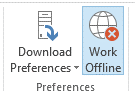 Back on terra firma, if you do need to write emails that may not need to be sent or read over a weekend or during the night, you could try Offline mode: simply go into the Send/Receive tab of the main Outlook window, and click the icon in Preferences.
Outlook being in Offline mode lets you review the emails you’ve got sitting in the Outbox, before committing to  sending them, which could be handy especially if you’re bulk-sending. Alternatively, when in online mode, you, you can delay individual emails’ sending time by looking in the Options | Delay Delivery section of the actual message window.
Delay everything
Another safety valve that some people rely on is to slightly delay everything they send – a technique that lets you fish out messages from the Outbox folder in case of accidentally sending them to the wrong person, hitting send too soon, etc.
The trick is to create a rule in your mailbox (NB – if you want to follow these instructions, you may want to arrange your windows so that you can see this on a 2nd monitor, or arrange the main Outlook window and this message side-by-side, as when you start digging around in Outlook rules, you won’t be able to flick back to this message if it’s behind the Outlook window).
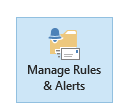
- In the main Outlook application window, go to Manage Rules & Alerts and click on New Rule
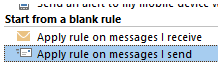
- Select Apply rule on messages I send and then determine if you want to apply some other conditions – maybe you only want to delay emails being sent to certain groups of people or if they contain certain words; if you don’t want to restrict to a given set of conditions, just leave everything blank and hit Next – and accept the fire-and-brimstone warning
 message that this rule will apply to every message…
- Next, set the timing you want to apply to the rule and hit OK – and when you go to save/apply the rules, you’ll get a warning that this rule will only run on this PC, which is as expected, since it’s a client-side one.
- Now, be careful – outgoing messages will sit in the Outbox folder on the PC you’re using, but that’s a special folder that exists only on your current machine and isn’t
 synchronised with the server or anything else – so if you hit send and then immediately close the lid on your laptop, your PC might go to sleep and the email will stay in Outbox until it resumes again…
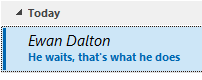 If you get cold feet on sending, or decide you need to edit your missive, just go into the Outbox folder, and if the email shows with the recipient name or address in italics, then it means it’s waiting to be sent – if you open up the mail and then just save it again, it’ll stay in the Outbox but won’t be sent until you edit it again and press the Send button again.
Finally, it’s possible to send mail in the future/from the past when you’re offline entirely. That’s a whole other topic that’s been covered 4 years ago.


 but still cool updates. One such is the new calculator app, a “modern app” which has been enhanced compared to the old-fashioned
 “


 The calculator doesn’t do currency conversion, but Bing.com
 does a decent job of that – just type the currency symbols or standard identifier into Bing and you’ll get an approximation. Add the quantity too if you like.

 For some time now, the
 the current time and a date picker that’s been redesigned to be
 touch-friendly. Clicking on Additional clocks also launches the new Alarms & Clocks application which integrates a couple of useful stopwatch & timer functions as well as a day/night view of the world map, and a configurable list of locations that you may want to keep an eye on, so you know the time at a glance.


 in the Lync meeting UI. In Skype for Business, during an IM chat or call, you’ll see there’s no equivalent participant button – there’
 s the usual button to show the IM window, which shows the text chat section but not the participants button.
 This has been moved to higher up in the UI – it varies depending on which kind of chat/meeting/conference you’re in. Click on the icon to the left of
 the text (hover and you’ll see the Open Participant List tooptip) and you’ll be able to view that list.


 y View shows you a horizontally-arranged list of attendees’ mugshots, which can be right-clicked to interact with them. Speaker View hides
 all of that, but still shows a picture of you next to the person who’s currently speaking, and Content View hides both in favour of the presentation content that’s being shown (the “Stage”).

 ability to have multiple desktops.
 To access, just click on the the Task View icon on your taskbar – assuming you are showing that icon (if not, right-click on the task bar and enable it). Another means to access it is to press WindowsKey+TAB (remember that

 of the virtual desktops that appear at the bottom of the task view screen – just drag & drop the windows of your running apps.

 Windows Explorer has a search function which can filter found files, based on some attribute or other – so you return files that are only of a particular type or age, or maybe of a specific size. The problem is, the understanding of what is a

 Delete stuff you don’t need
 Navigate to your file location, and make sure can see the file extensions – go to the View tab in Explorer and tick the File name extensions box if you can’t see them. Make a copy of the PPTX file you want to work on, select it and right-click to Rename (or just press F2). Now overtype the .pptx bit at the end with .zip, and agree to the dire warning that the Earth might stop turning if you continue.
 former when you’ve maybe got a video or just lots of high-res pictures embedded, and the latter is a common source of embedded XLS files which might be unnecessary… ie. Maybe you could get away with a simple copy of relevant data, rather than the whole file?). Maybe the best way to slim down the file is to open the un-renamed one in PowerPoint, then navigate to the place where the huge content was and resize, compress or replace it.
 be just to compress pictures – you can get to that from the Format tab when you have a picture selected, and
 individually reduce the size and resolution of each image.
 to every image in the deck.
 Do you suffer from
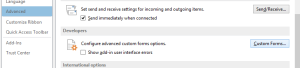 OK, now back in Outlook, go to File | Options | Advanced then scroll down to find the Developers section, and click on Custom Forms…
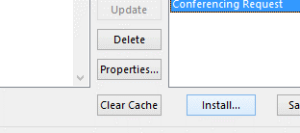 Now, click on the Manage Forms button, and you’ll see a dialog to do just that… click on the button Install, then a dialog box will pop up to look for the form you want to install – paste the location to the .CFG file you Copied as Path above… You should see the Sender Address Type form appear in the list, after which you may Close | OK | OK to get back to main Outlook window.

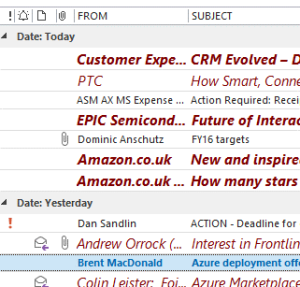
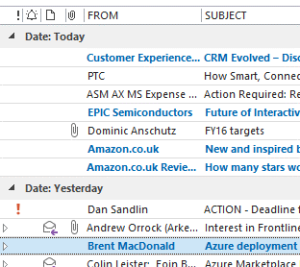
 the dialog which pops up – this can set rules on how emails are highlighted, or not, and is what’s used by default to make unread emails bold, or urgent emails red.

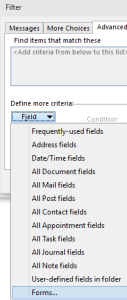 Advanced tab…
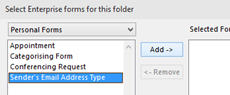 click on Add-> and then Close. This will then allow you to use that form to choose attributes for formatting. If you later chose to create Search Folders, Inbox rules or other filtering within Outlook, the same process would apply.
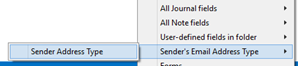 This is the one custom field that was added through the whole form shenanigans above – if the sender was internal, it’s probably either blank or EX, if external it’ll be SMTP.
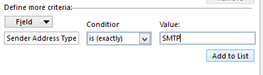 Now, set the criteria – if the Sender Address Type is SMTP, then we want to treat it differently – click Add to List then OK.


 Symbol Swipe

 Try downloading the update to turn Lync into Skype, from
