Business cards are still a big part of business culture – even if many of us primarily communicate via email, the ceremony of handing over a little card with your name on it, at the start of a face-to-face meeting, is still quite important. Some countries, such as Japan, have very particular etiquette rules surrounding business cards, so it could take a long time for them to become obsolete.
What better time to institute a resolution to digitise the pile of business cards you may have lying on your desk, than the new year? And to routinely add new business cards to your Outlook contacts folder when you get them, without waiting ages? Well, an update to the amazing Windows Phone app, Office Lens, can help out.

 The Lens app (install from here) now has an ability to scan business cards as well as photos, whiteboards & documents. Just tap the option on the top right of the app to choose the mode, then select business card. Now, point the phone at the business card you want to scan in, tap the screen to focus and press the on-screen camera icon or the phone’s camera button, to “scan” the card.
It helps if there’s a contrast between the card and the surface it’s on, so if you have a light desk then try getting a piece of coloured paper, and you don’t necessarily have to angle straight down – try to avoid casting a shadow over the card. The software will try to identify the edges of the card and will scale it as if it was flat, and fills the image.
 Once you’ve photographed the card, you can choose if you want to select & use it, delete it and try again, or possibly add another image – so if your card has info on both sides or you want to batch people from the same company up in one go, then you can have multiple images per contact page.
After tapping the save icon, you can choose which section in OneNote you want to save the resulting info – it may be worth setting up a new section in your notebook on OneDrive, just to catch all the contacts while you decide what to do with them. It works best if you have a pile of cards to just scan them all in as one production line, then go through them and edit/tidy up as appropriate.
Each card will produce a single page in OneNote, with the image(s) of the card embedded, and OneNote will try to identify the text off the card and also figure out the key fields (such as name, address, telephone, email etc). The title of each page might not be all that helpful (by default, it’ll be something like “05/01/2015 13:01 Office Lens”) , but it will be possible to search across the whole notebook, so you can find the contact details from each scanned card without necessarily having to do any more. You can always rename the OneNote page later, if you like.
If you want to add the resultant scan to Outlook’s contacts, then each OneNote page that can successfully identify enough key information from the scan will show a “BizCard” attachment, which opens a vCard of the contact information. Simply open, make any final tweaks, hit Save and it’ll be added to your Outlook contacts folder.
Finally, you’ll probably want to delete all the scanned images from your phone – they’ll be cluttering up your SkyDrive/OneDrive Camera Roll folder if you have automatic upload still enabled, so the quickest way would be to use your PC to delete all the card scans from that folder and let it sync back to OneDrive.
 Happy New Year! For many of us, time to chuck out trees, and pack away any and all decorations, never to be seen again until December ‘15. Before you recycle the cards you may have received over the holiday season, here’s a quick way of using Outlook to make the job of sending your cards that bit easier.
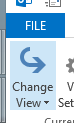 Create a new view
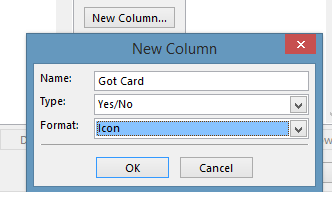 track interesting bits of info – like whether you sent a card to this contact, and if you got one in return. Click on the New Column button and for the name enter Got Card, then choose Type Yes/No and leave Format as Icon. Press OK to create, and repeat the process for the Sent Card field.
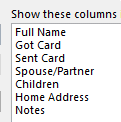 All Contact fields from the “select available columns…” drop-down box, then pick some of the more esoteric contact fields that already exist – Spouse/Partner and Children fields will let you remember who to make the cards out to, and Home Address and Notes are pretty self-explanatory.
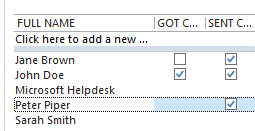
 OK, now we have a quorum of contacts tagged with Got & Sent attributes, go into View Settings and click the Filter button, then switch to the Advanced pane. From
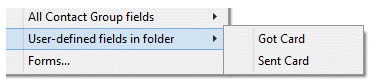 the Field drop-down box, choose User-defined fields in folder and add Got Card.
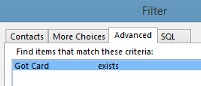 want to change the Sort order to Full Name.
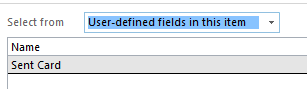
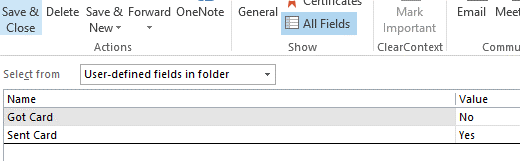 If you want to continue adding contacts to the list, simply open your existing contact (maybe from the main Outlook contacts view), then click on All Fields, and select the fields from the user-defined fields in folder – you can then set Yes or No for each of the custom fields, and that contact will now show up in your Christmas Cards view.
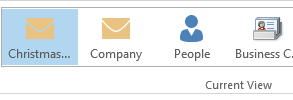 So what’s the point of all this faffing about? Well, in 11 months’ time when you come to do your next round of cards, just select the view in Outlook and if you select File / Print and select Table Style, you’ll get a nice sheet or two of all the details and addresses you’ll need to write all your cards.


 Remote Power
 As with temperature sensors, there are
 There is a 3rd party app called SmartHome for

 Tip o’ the Week goes

 Microsoft announced recently that the


 Rate and review
 Taking this option fires up the Store app, and navigates directly to the review section where you can assign a 1-5 star rating and give some verbiage should you desire. If you’re going to slate an app that everyone else rates highly, or the opposite, then you really should explain why, so others can benefit from your wisdom or simply write your thoughts off as coming from a blithering idiot.
 If you want to rate apps without actually opening them, you can go into the Store app, select Account | My apps from the menu at the top, then select the appropriate filter from the drop-down boxes, then click or tap on each item to get to its Store page, which includes rating & reviews.
 Windows Phone ratings

 There are many
 If your car has the ability to see your phone’s directory or phone book, then you should see a contact show up in the list (when viewed in the car – it doesn’t actually appear as a contact on the phone itself), called Cortana.
 Many of us will be familiar with using the web browser on our phones – unkindly, one might say that it’s partly due to the fact that Windows Phone users sometimes don’t have a choice, whereas iOS and Android devices might be redirected to install some native app rather than using a browser to view the content.


 Anyway, this tip reprises the topic of the

 To disable the toast from the Mail app, go into the app itseld and bring up the Charms (press WindowsKey+C or swipe from the right if you have a touchscreen, or put your mouse in the top right of the screen). Now select the Settings charm, then Accounts, then go into the account you have set up to your corporate emai (since you can set notifications differently per-account).

 , as it approaches its first birthday. The console started shipping a little while back in a new, Kinect-less (dis-Kinected?) package (
 The October update which rolled out in the middle of the month was quite a big change to how some of the fundamentals of the console work – like Snap, which got a whole lot more useful by being easier to manipulate.
 “Friends” section to the home screen.
 This week’s tip comes as a direct result of a conversation had over a glass of wine and a plate of food, with Content & Code’s supremo,

 Find the OneDrive logo in the Windows
 Right-click the icon, then open the OneDrive folder using Explorer, right-click in the resulting window and create a folder where you want the Desktop contents to be. It might help to copy the location of that folder to the clipboard, for use shortly…
 Now, in the same Explorer window, scroll down in the folder list to see the This PC section and right-click on Desktop, then Properties, then look to the Location tab.