Lots of people (including Office365 users) should have been moved to Lync 2013 by now, though the impact may not be all that obvious, since some of us have been using Lync 2013 client for a while, even if the back-end wasn’t running the latest and greatest.
Some of the changes will only be apparent when you join a Lync 2013 meeting – for example, when an application is being shared, one view will show you a line of photos of active participants in the meeting, and when each is talking, a green bar is shown under their mugshot, so you know who’s making all that noise, heavy breathing into their microphone, sniffling etc. Subtle.
[NB: in the photo below, the only highlighted person was actually talking at the time, and if fact, was the only one showing real video rather than a static photo]

 There are a bunch of incremental improvements which the server upgrade provides, and some which subsequent updates to the client light up – one of which is the “Meetings” section which appears under the your status section at the top of the main Lync window (and somewhat confusingly, is depicted like a pie chart). The meetings tab shows you the remainder of your diary for the day (refreshed every 10 mins), and helpfully highlights any Lync meetings in blue, so you can right-click to Join. No need to go back to Outlook, open the calendar appointment, click on the link etc.
Other tweaks include the ability to set whether the IM and participant list shows up when you join a meeting (both of which were previously hidden by default until you clicked around inside the meeting). And if you’re the meeting organiser, you could decide to stop IMs or video in a meeting/call altogether.

The behaviour of the Lync client when you join a meeting is set under the Options icon (towards the top right, or you can press the ALT key to show the menu bar and go in throught Tools / Options if you’re old skool).  There’s also the new ability to choose which Lync client to use for joining meetings – handy if you also have the Lync Modern app installed and would rather use it, for example.
Oh, and don’t forget to install and configure the fab Lync 2013 for Windows Phone, too. As before, but with more panache and pizzaz, the Lync client allows you to join conference calls with a single click (no typing in participant numbers and the like), as well as adding some cool new functionality – like using Wifi for VoIP calls if you set it to.
 Everyone in the developed world seems to have been subjected to PowerPoint at some stage. PowerPoint is an unusual tool – one that is immensely popular by the people who use it, and one which invokes shudders amongst some of the victims of bad presentations down the years. One even coined the term “
 you put your mouse in that general direction. As well as navigating back and forth between slides, you can annotate the currently presented slide, zoom into it (great for highlighting something to your audience), the new “Slide Navigator” icon is of particular interest.
 Talk as if you don’t need whatever is behind you, unless you’re showing screen shots or diagrams that you have to refer to in order to make sense.
 Clicking on the icon itself will show a nicely ordered overview of all the slides in your presentation, so if you need to jump to a particular slide you can do so, without opening
 your kimono and showing your goods to the expectant audience. In Presenter View, the section-by-section thumbnails are shown on your own private screen, so you can easily find your slide and jump to it without even letting the viewers realise it wasn’t contiguous in the original flow of your slides.
 TIP: to start a PowerPoint slide show with the currently-selected slide, just press SHIFT-F5.
 Outlook 2013 introduced some changes to the way the standard inbox view is presented. It’s



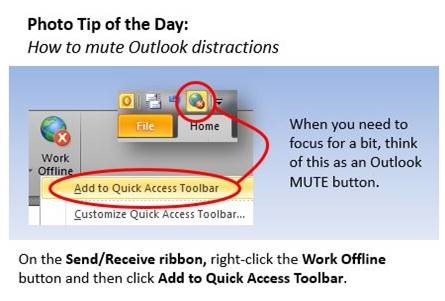 Robert also recommends a shortcut for the keyboard junkies so dedicated to extreme productivity that they can’t afford to lift their hands away to touch a mouse – to toggle Online and Offline modes in Outlook, simply press ALT+S then W.
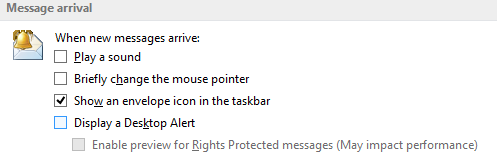
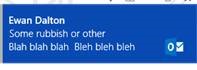 Whilst on the subject of Outlook and distractions, do yourself a favour and switch off the new mail alert – it’s even more intrusive in Outlook 2013 than previously. We all get enough email that we don’t need to know when another one has arrived, so try it now and you can always switch it back on if you feel that nobody loves you anymore.