There was a time when the software “ship cycle” resulted in delivery of the final version, the “Gold” code (so called as it would have been written to a gold-coloured recordable CD), which was RTM’ed then sent off to get pressed onto CD or even copied onto magnetic disks.
Nowadays, there generally isn’t ever a “finished” version – there’s the initial release, then a whole stream of updates, patches, service releases, feature packs etc.
Windows 10 Mobile (the new moniker for Windows Phone) has been slated for release for a little while now, even though there are phones out there shipping with it ready installed, and there are more to come soon – maybe some news will follow at Mobile World Congress later in February. There’s now a page that will show details of updates to Windows 10 Mobile – there’s not a lot on it right now, but check out the Windows 10 version if you want to see what to expect. Commentators are suggesting that the fact the update page exists means the wide-scale rollout of Windows 10 Mobile to existing Windows Phone 8.x devices must be imminent.
Get it early
If you want to install Windows 10 Mobile on your existing phone, it’s very easy to do – just install the Windows Insider app on your device, sign in with your Microsoft Account, and when you run the app it will ask you what degree of pain excitement you’re prepared to tolerate enjoy. The Insiders Fast “ring” will give you the biggest thrill, but especially in early stages of the development cycle, might break things that worked previously. The Slow ring  will give you stuff that’s been run by the Fast people for a while, and is known to be in good shape. You can switch between the rings, so if you choose to go Slow but never get any updates, you can always step up the pace a bit. There’s a new “Release Preview” ring now too,
Read more about the Insider program here; get the app from here.
Latest release
Fast and Slow rings have been given the 10586.107 build (in fact, that’s also gone to any existing W10 Mobile user too), which is being reported as “Production Ready” and rumoured to be the build that will be rolled out to other devices, said to be coming any day now. If you’re running Windows Phone 8.x and fancy previewing Windows 10 Mobile, or if you’ve already got a 950 or 950XL and are looking to get the latest & greatest build, then make sure you grab this one. User reports say that devices are running noticeably faster and battery life is greatly improved.
Check out your current version by going to Settings -> About -> More Info on Windows Phone 8.x,
or Settings -> System -> About on Windows 10 Mobile.
What’s new in Windows 10 Mobile
 There’s a new UI, some changes that are obvious when compared to WP8.x, but some are more subtle. The Notifications area at the top of the phone, for example, can show all the common settings and includes shortcut features like a Flashlight, or quick jump to OneNote.
Find out more about what’s new, here.
If you have a new handset, there are some other obvious changes – like the 3 buttons at the bottom of the screen now being on-screen rather than below it (so the screen can be bigger). Those buttons will disappear in some apps that go full-screen (like games, or videos), so you may need to swipe up from the bottom of the screen to show them.
Also, if you’ve a new device, you’ll notice that it’s using USB-C – a further evolution of the USB standard with a reversible connector (hooray!) – hopefully no more damaging the connector by jamming it in the wrong way. You might not be able to bend the connector, but powering the device can still be something of a minefield.
USB-C cables are not all the same
If you got a Lumia 950 or 950XL, you may notice that the USB cable that comes with it looks like the kind of thing you’d find connecting an electric car to the charging stations in the car park. It turns out that good USB-C cables are quite differentiated from the generic junk you could buy for $1 on eBay or $15 from Best Buy.
Since you’ve probably got a house-full of Micro-USB cables & chargers cluttering the place up, you might wonder how to work USB-C into your life without too much friction. Well, Googley engineer Benson Leung has done a great job of putting lots of USB-C cables & adapters through their paces, and declaring which ones will set fire to your power supply, make your phone go into meltdown or which ones to get. Basically, if Benson gives it 2 stars, then don’t bother.
If you’re after the tl;dr version and you’re in the UK, just go and buy this £7 cable and these £5 Micro-USB->USB-C adapters (so you can plug your phone into your existing car charger without too much faffing and changing cable). Yes, £7 seems a lot for a USB doofer when you could find them on fleabay for a quid, but guff cables could do more harm than good. Benson Leung for President!
Some additional early-stage tips for getting to grips with your new Lumia 950/XL:
- Make sure you run the Phone Update from Settings / Update & security / Phone update
- When you plug the phone in and the battery icon shows the charging symbol, that doesn’t necessarily mean that it’s charging. You may find that it’s just plugged in, but not getting power (especially if it makes the bada-la-doop noise every 15 secs). Props to Nick Page for pointing this out.
- There’s no way to turn on “Hey Cortana” from the All settings menu, and using “find a setting” for “Cortana”, doesn’t (apparently). Instead, start Cortana (press/hold the magnifying glass), press the hamburger menu in the top left, and still, there’s no settings etc. Start Notebook from that Cortana menu, and you’ll see Settings from within, and you can switch on, Hey, Cortana. Bonzer.


 Now that the festive period is behind us, it’s time to get back to the mundanity of the New Year. The salad bar in every restaurant is heaving, every gym has lots of red-faced semi-exuberant
  The “
The “ Change your startup folder – When you start Outlook, do you really want to jump straight to your inbox, with all of the distractions it contains? What about starting in Tasks or Calendar instead? Easy – just go to File -> Options -> Advanced and you can pick a different place for Outlook to default to.
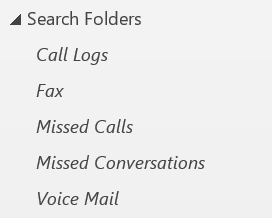 Create a search folder for your flagged mail – if you routinely flag messages for follow up, then it’s a good idea to keep track of them all. The Outlook tasks view can do that for you, but it can be a little confusing, especially if you rely on Wunderlist or some other tasks management app.
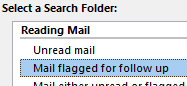 click New Search Folder and choose Mail flagged for follow up. This will create a new search folder fo you, and could even be set as the default folder (as per the first bullet).
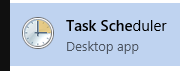 (press start, type task s…). Don’t be put off if you see lots of tasks you don’t recognise.
 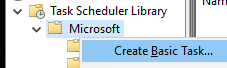 Expand the Task Scheduler Library and right-click on Microsoft then Create Basic Task.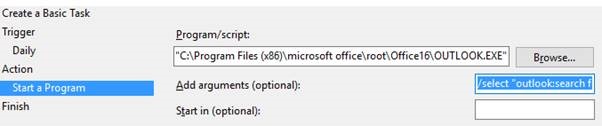
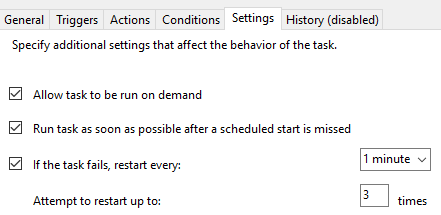 When you get to the end of the task wizard, tell it that you want to open the properties dialog for the task when you click finish. Navigate to the Settings tab, and check the box that you’d like to Run task as soon as possible after a scheduled start is missed – this way, if your laptop was still asleep at 7am, it would run Outlook up next time you log in. You might as well check the “restart every…” one too.


 It’s been a busy time for the Skype team at Microsoft. At the
  The
The  “
“ Checking Remote Desktop is available and switched on
 You’ll see if you’re running Pro or Enterprise version of Windows, and you’ll also have the link to Remote settings – have a look in there, and you will hopefully see the Remote Desktop section. Make sure it’s enabled and that you’ve selected the right users to be allowed to connect. Whilst you have that dialogue open, click on the Computer Name tab and make a note of what your machine is called – you’ll need that in a sec. You might even want to rename your machine to something more memorable while you’re there…
 Now, from another Windows machine, you should be able to connect to your PC – type Remote at the start menu to see the Remote Desktop Connection app – or just press WindowsKey+R and enter mstsc to launch the same thing (the executable is named after Microsoft Terminal Server connection, before the technology was renamed Remote Desktop Servicess).
 If you have multiple machines you might want to connect to, then mstsc /v <name> will jump straight to each one, and the Most Recently Used list for the Run command will offer you previous-used entries. This can be a handy way of remembering the names for the machines you might use regularly, so isn’t as counter-intuitive as you might think.
 Firewall related things that might trip you up.
  old-fashioned Control Panel applet, and make sure your PC thinks it’s connected to a Private network. If you need to change from Public to Private, launch the HomeGroup control panel applet, and you can
  that the appropriate Firewall Rules are enabled – go into the Windows Firewall with Advanced Security control panel app, and under Inbound Rules, make sure the rules beginning Remote Desktop… are all enabled (showing a little green tick).