Tip o’ the Week #113 – Add context to your Lync status

clip_image002One of the biggest cultural impacts of using Instant Messaging and UC technology in a business context is the way that people tend to check the status of someone before contacting them. It’s a relatively rare occurrence to get an internal phone call out of the blue if both parties are online: usually, it would be set up with a quick chat on IM first – then the calling party knows that the call they make isn’t going to drop to voice mail.

To quote UC aficionado Tony Cocks, “it’s all about presents”. 
Or presence, and the value that it gives to anyone trying to contact you.

If you’re set to Do Not Disturb (DND), for example, we probably all know that means trying to send an IM won’t work. Trying to call via Lync or on the internal phone number won’t get through either – setting yourself to DND sends all calls straight to voice mail (or straight to oblivion, for many people). I heard a story the other day about someone who got an unannounced incoming cellular call – the caller saying, “yeah, I saw you were on Do Not Disturb so thought I’d call your mobile…”  Like, duuuuh…

clip_image003Did you know you can allow people you trust to interrupt you when you’re on DND..? Right-click on their name in Lync, choose “Change Privacy Relationship” (right at the bottom of the menu). Set them to be part of your Workgroup, and when you set yourself to DND, they’ll see you instead as being on Urgent Interruptions Only. And they can IM you.

Anyway, we can infer a lot from someone’s automatic status – if they’re Busy, then chances are their Outlook calendar has been blocked out or they may have manually set the status to show they’re busy. That doesn’t mean they’re uncontactable – only that if they don’t respond, then you shouldn’t be surprised. If they’re In a Meeting, it means not only is the Outlook calendar blocked out, but it’s being blocked by a meeting with more than one attendee. Maybe that means you could still IM the person, but they probably wouldn’t be able to take a call. If they’re on In a Call or In a Conference Call, then they’ll definitely not be able to take a call as they’re on one already…

clip_image005If they’re Away (like Richard, here), then they’ve probably either wandered off from their PC or else they’ve locked the computer (WindowsKey + L), and you may get some extra context about how long they’ve been away for. If only a few minutes, they could be sitting at their desk talking with someone (or reading a paper etc), and sending an IM might get an immediate response … but if it’s been 30 minutes, they probably are genuinely not there and you’d better look elsewhere, or send an email.

Add further contextclip_image006

As you can see from Richard’s status above, he’s also got a line below his name that says where he is – TVP. Actually, this is just set by the free-text note field at the top of the Lync main window (which asks “What’s happening today?” if you haven’t set anything else). It’s a handy way of giving a little more context if you want people to know, or just provide a pithy one-liner akin to a Facebook status.

If you want to be a little more specific you can also provide a number of custom presence states, so rather than just being Busy you could be Busy writing reports, or instead of being Available you could be Working from home. See TechNet or previous missives on this blog.

clip_image007For place specific info, you could try setting up custom locations – in short, when your PC appears on a particular network, you can give it a name and then whenever you use the PC at that location, it will show up in your own Lync client right under your name and your status. Different locations needs to be named separately (eg Home, CP, Edinburgh, TVP).

It’s not all that obvious to everyone else, however – to see someone else’s custom location, clip_image008right click on their name and View Contact Card (or just click on their name and press ALT-ENTER). If they’ve set a location up, you’ll see it – otherwise they’re either not in a place they’ve named, or you’ll just see their time zone. If you want to make it plain to everyone else where you are, then you may want to stick to custom status and/or using the Lync “What’s happening today?” text status field.

You can see set the Lync status on the above screenshot is Off work – that tells the world that even though I’m online via Lync, I’m not online to do work… and if someone was to click on my details, they could see a whole load of information about whether I’m likely to respond to their IM. If you’ve set your status to Off work and someone IMs you about work, then it’s perfectly acceptable to just ignore the message (press Esc to get rid of the popped-up window in one fell swoop). Well, depends who it is…

Tip o’ the Week #112 – Change Outlook’s startup folder

Productivity gurus wax on about how gaining and maintaining control of your never-ending to-do list starts with the way you prioritise, and how you build discipline in working through your task list rather than being distracted by less important “stuff”.
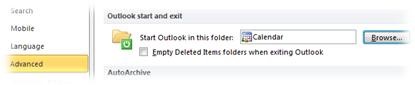
So, why is it that we stick with the default setting in Outlook, which starts up showing the Inbox folder, and with the most recent mail at the top…?
The only thing more distracting than looking at an inbox full of shiny new mail, is to have the new mail notification flash up in front of whatever else you’re doing, to tell you about it.

Check out the very first Tip o’ the Week – how to switch off the Outlook new mail notification. Try it out.
Live notification-free for at least a day; you can always switch it back on again if you need to.

If you’re on a Lync meeting and someone shares their desktop to show you a presentation (tsk, tsk), or you’re watching a presentation/demo on a big screen, feel free to berate the presenter publicly if they receive a new mail notification during the meeting.

Here’s a tip that Microsoft’s own internal IT training programme recommends: set which folder Outlook starts up in. When you launch Outlook for the first time, don’t have it go into your Inbox – what about opening your Calendar instead?

To change, go into the File menu, under Options then Advanced. Scroll down to the Outlook start and exit section, and pick your folder of choice. Simple as that – though if you routinely sleep and resume your PC, you might not be starting Outlook very often, so you may only see this occasionally. Continue reading →

Tip o’ the Week #111 – Sharing PowerPoint in Lync?

clip_image001If you’re regularly part of a Lync call which involves presenting slides, here’s some best practice that everyone should know about. In a nutshell – don’t share your whole desktopto show the PowerPoint slides; don’t even share PowerPoint  as a single program (something that Lync would allow you to do), but it’s really not the best way.

Why not?In general, the user experience is better if you show slides by uploading them into the meeting/call. Showing slides by sharing the whole desktop is inefficient on the network too; if the network isn’t so great (eg when attendees are on slower lines), it can be practially unusable. Also, unless you’re really smooth in the way you operate the PC, you’re in danger of showing more than just the slides – email alerts, incoming IMs from other people popping up etc. A slicker way of sharing slides is to use Lync’s built-in functionality designed to do just that.

If you have slides sitting on your PC, the quickest way of adding them into your meeting is to click on the Share clip_image002button within the conversation window, and select PowerPoint Presentation, which will then give you the option to choose a PowerPoint file to be shown – the Lync software will then upload the PPT to the server, and convert it to an HTML format that can be shown in a browseror in the Lync client. This process of uploading & conversion can take a little while if you have a large or complex PPT, so it’s best to start uploading as early as you can.

The nice thing about using this mechanism to share slides is that they are now in the meeting, and other attendees could take over as presenter quickly – you clip_image003could even leave the meeting and let them continue.

If you store your slides on a SharePoint site, there’s a trick to quickly uploading the slides to your meeting. One way would be to navigate to the document library in the browser, and then Open with Explorer – another would be to simply open the SharePoint site in Windows Explorer, by using the UNC – eg instead of going to http://sharepointemea/sites/love-it/tipoweek, go to the start menu and simply type \\sharepointemea\sites\love-it\tipoweek.That way, you could browse to the document just as if it’s on your hard disk.

If you go back up to the point earlier in this tip, to where you’d add a slide deck from your PC – you could type the \\sharepointemea\sites\etc link into the file dialog and then select the appropriate PPT, or else you could prepare in advance by opening the library using explorer, then re-use the tip from ToW#101on how to copy the full path of a file name to the clipboard, and just paste that into the dialog when it comes time to upload the PPT.

Once you’ve converted to using this approach, you may freely mock anyone who still does it the (admittedly, easier, with one click) old fashioned way of just sharing out their whole desktop to show a single slide deck. Live the dream – upload the slides to the meeting  using Lync!

There’s a really good explanation of some of the other benefits to using the PowerPoint sharing method on this blog.

Tip o’ the Week #116 – Windows 8 – IE 10 desktop or Metro..?

clip_image001One of the potentially confusing aspects of the Windows 8 Consumer Preview is the fact that it has two web browsers built in – the Internet Explorer we know and love has been updated to IE10 on the desktop, and a new IE10 browser has been added into the Metro UI. For the most part, there’s little to tell between them (browsing a page is pretty much browsing a page, after all), though in common with all Metro applications, the new variant launches full screen and has controls in a different place to the desktop IE10. It may feel a bit snappier and is certainly easier to use when interactive via touch.

For more info on what’s new in Metro IE10 and the reasons why, check out Steven Sinofsky’s recent blog post. ZDNet’s Mary Jo Foley replayed some of what the blog says, and added a bit of commentary too.

One of the more notable differences between the two browsers (apart from the user interface) is that the Metro version does not allow any plugins – so no Java, no ActiveX, no Flash, no Silverlight. There are very good reasons for this, centred around the way the technology which underpins all Metro apps (known as WinRT) manages applications’ performance so as to prevent them stomping all over each other and the system, to stop them doing things that would adversely affect the power consumption of the machine (see more here, and here) and to generally be good, cohabiting citizens. None of that is possible whilst the browser could run arbitrary code like Flash or through pretty much any other plugin.

So what this means to the end user is, it’s possible that you’ll open up a site and it won’t operate as expected –

clip_image003

clip_image004[no more buttery biscuit base for Metro IE]

… and no amount of attempting to install the Flash/Silverlight/etc player will work.

Never fear. Avid ToW reader and serial contributor David Overton has suggested a quick solution. If you find yourself in Metro IE and unable to properly view a page, just open the Navigation bar at the bottom of the screen, click (or tap) on the spanner icon for Page Tools, then select View on the desktop to switch to the desktop version of IE, with the same URL being shown.

Now you can view your addin-happy sites using the traditional IE.

clip_image006Power users apply here

clip_image007Another tip courtesy of David concerns the bottom left of the screen. If you move your mouse directly to the lower left corner, you’d see a preview of the Start menu (clicking on or tapping on which jumps to the Start screen, a trick available from any application), but David also points out that if you right-click, you’ll see a power-user menu with shortcuts to a bunch of applications that are pretty well hidden within the new Metro UI.

An even more power-usery way of getting to the same menu would be to press WindowsKey+X at any time. You can even start a Command Prompt with Admin privileges, in fewer clicks or keystrokes than in Windows 7.

Tip o’ the Week #115 – Windows 8 keyboard tips

The next couple of posts on this blog are out of sequence, since they concern Windows 8. I’m bringing them forward by about a month… so ToWs #115 and #116 will come soon, then we’ll revert back to ToW #111 thereafter…

Windows 8 Consumer Preview has been out for a little while so it’s worth taking a look at some tips on getting the best out of the Consumer Preview.

Despite all the focus that is (rightly) being given to the touch experience of Windows 8, it’s still very important to offer a good keyboard/mouse experience too, since most existing PC users don’t (yet) have a touch screen.

When the mouse first came on the scene, some existing PC users complained that they’d never use the new UI mechanism since the keyboard was so much more efficient. The way the PC has evolved, it’s a blend of keyboard, mouse, touch, voice… some people prefer one over the others, and many of us will use a combination that’s appropriate at the time and on the device. In short: if you don’t see the point of touch initially, you’ll look back in a few years’ time and wonder what all the fuss was about.

Shut down and sleepclip_image002

One design aspect that’s had online forums grumbling about, is the way you shut down Windows 8. Some users even complained that they even had to use Google (hmmm) to find out how to sleep or shut down their new Windows 8 install.

The answer is, there are several ways. One, is to try Bing rather than Google – http://letmebingthatforyou.com/?q=how%20to%20shut%20down%20windows%208 – whilst another would be to activate the Charms (swipe from the right it you have a touch screen, or push your mouse to the bottom right then up to hover over the charms that appear), then select Settings, then Power, then Sleep / Shut down / Restart. All very well, but a few more keystrokes or mouse clicks than under Windows 7…

A quick alternative is to press CRL-ALT-DEL to display the Lock / switch user / change password etc dialog, then press ALT-S to activate the Shutdown option in corner, and then press the underline letter for Sleep, Shut down or Restart – so to sleep a PC quickly, just press CTRL-ALT-DEL, ALT –S, S.

The Windows Key revisited

There are some new shortcut keys to help navigate Windows 8 CP. Try these out… (Wnd is the WindowsKey, ie key with the old Windows logo, normally to the left of the spacebar). When you press Wnd on its own, you’ll see that it displays the new Start screen – aka the Metro UI.

Wnd+PgUp & Wnd+PgDn – moves the Metro UI from one monitor to another, if you have multiples.
Eg. If you have a laptop plugged into an external monitor or projector and set up Extended display (Wnd+P), then you can quickly make it appear on that screen. Now you can have the Start menu show up either on the screen in front of your, or (if you have one), on the touch screen of your laptop to the side.

Wnd+”.” & Wnd+SHIFT+”.” – if you have a high resolution screen, you can snap the current application or move the existing snapped application to the left or right.

Wnd+c – opens the Charms bar on the right of the screen

Wnd+I – opens the Settings page for the current app

Wnd+k – opens the “Devices” charm, used to print from a Metro app that supports it (thanks to David Overton for that one)

Wnd+q, Wnd-w, Wnd-f – goes straight to Search for Apps, Settings and Files respectively.

Tip o’ the Week #110 – Tracking Outlook responses

clip_image001Most of us regular Outlook users are well-versed in the Request/Response model of doing things other than email. Take an appointment in your own calendar: add an invited attendee or two, and you’ve created a meeting. What’s different? The meeting invitations were sent out and the list of attendees is listed and tracked.

If you’re invited to someone else’s meeting, you’ll see options on how to respond, and clip_image002 you’ll be able to look at the scheduling view to see who else is on the list, but you won’t be able to see how they’re responded to the invite (well not entirely). You may be able to see the details in the scheduling view (depending on whether the invited attendees have given you the permission to see their calendars).

clip_image003But if you organised the meeting, you’ll see further options, including the ability to check the tracking status – so you can see who has accepted, declined or just not responded to your meeting request.

If you didn’t organise the meeting, you may be able to open the calendar of the organiser and still be able to see who responded and how. Useful when you’re sitting in a meeting that someone organised, and you want to see who’s still planning to attend.

Unfortunately, when you look at the View Tracking Status tab, you’ll see the responses shown as a table, but unfortunately it’s not possible to sort or filter that list – so quickly picking out everyone who hasn’t responded from a long list of invited people isn’t so easy.

clip_image004Redmond resident Texan Steve Winfield pointed out a simple solution, however – click on Copy Status to Clipboard, and the entire list gets copied to the clipboard – fire up Excel and hit paste, and you’ll be able to quickly sort and filter so you can chase up the non-responders or the folk who declined.

When you’re checking the tracking status of a meeting request, you will go to your calendar, but it’s not the only kind of clip_image006tracking you might need to do.

If you send an email with a read or delivery receipt requested, or are looking for a voting buttons response, you’ll see your original email sitting in Sent Items but with a different icon on the clip_image008message . open the message and you’ll be able to see some tracking capabilities, which differ a little depending on whether you’re looking at delivery or read receipts, or responses to the voting request. Either way, this time, you can only see a static list, with no clipboard shortcut. If you’d like to copy the responses:

· Click on the top one, 

· Press SHIFT-END to select the whole lot

· Press CTRL-C to copy to clipboard

Now, it’s a snap to go into Excel, paste the responses and you’re free to sort & filter as before.

Tip o’ the Week #109 – SkyDrive on the move

clip_image001Everyone should know about SkyDrive – the free Microsoft service that gives users with a Live ID (including MSN, Hotmail etc) a 25Gb storage space online, accessible ostensibly from anywhere?

Well, it’s just been made more convenient to access SkyDrive files from mobile devices, thanks to SkyDrive Mobile. In the case of Windows Phone and iPhone (and iPod Touch, and iPad too), there are apps specifically built to make the interface to SkyDrive more smooth – otherwise, it’s still possible to get there via a browser from other devices, albeit maybe a little more clunky.

We’re increasingly stepping up efforts to support non-Microsoft devices in accessing our services – as well as SkyDrive and Tag, there is a growing number of Microsoft apps for iOS and Android.
An example is the newly-released MSN App for the iPad – link via iTunes here.

One of the more useful tricks with SkyDrive is to use OneNote for home-based note taking (making sure you don’t fall foul of MS security policy and use it for work related, potentially confidential stuff) – with a OneNote stored in SkyDrive, it’s accessible from your phone, from multiple clip_image002PCs using OneNote just as  normal, and from any browser you care to point in the right direction. It’s a huge boon for taking notes like holiday booking reference numbers, insurance claim notes, shopping lists etc. We’ve covered this a while before in ToW #52 here, and there’s also an article in the online help.

We’ve also looked in the past at an unsanctioned but still potentially useful 3rd party PC app called SDExplorer, which lets you access SkyDrive folders directly from within Windows Explorer, and therefore within any application. There’s a free version that’s limited in some functions, and a trialware pay-$20-for variant that’s a bit more capable. Have a look but do remember that it’s subject to break any time the SkyDrive team make major changes – the SDExplorer authors seem to have done a reasonable job keeping up, but as they say, YMMV.

Tip o’ the Week #108 – Using Accelerators

Internet Explorer 8 added a concept known as IE “Accelerators” – the principle being that you could select some text on a page, and using an accelerator, quickly search the web for that piece of text, or maybe do something clip_image001more specific. The other day, I was talking to someone about a particular piece of kit, and we were looking at a website commenting on it. Looking for more info, I used one of the IE Accelerators to quickly Search with Bing, and he said, “wow – I didn’t know you could do that..?!”

There are a bunch of Accelerators built in with IE9 – the most obvious ones letting you select something on the page and immediately search Bing for the text you’ve selected. Even handier, select a post code or place name and Map with Bing to view the map straight away, all without need to re-key everything.

There are other accelerators available – if you’ve got more than one Search provider (other search engines, apparently, are available) then they’ll show up in the “All Accelerators->” flyout menu, and under the Manage  Accelerators option on the same menu, you can find more or deal with the ones you currently have.

Check out the IE Gallery for more accelerators and other addons.

Tip o’ the Week #106 – Revisiting Microsoft Tag

We’ve covered Microsoft Tag before on Tip o’ the Week, but it’s worth paying another visit as a few things have changed. Tag is an innovative 2D barcode which can be in colour or black and white, and can even be heavily stylised and worked into logos or other graphics.

If you haven’t tried using Tag before, then point your mobile phone to http://gettag.mobi to download the Tag reader app, unless you have Windows Phone 7.5, in which case it’s built in. just press the search button on the bottom of the phone, and press the “eye” icon on the bottom of the page – then hold your phone over the tag to read it.

clip_image001clip_image003Here’s a customised tag that points to a web URL – http://binged.it/wcQrOr. (Spot the new function within Bing Maps, where when you share a map view that you have, it generates a short URL rather than the massive multi-line one that it used to. like this one.

http://www.bing.com/maps/?v=2&cp=51.471944979869825~-0.5412939190864563&lvl=10&dir=0&sty=r&eo=0&rtp=pos.51.496877_-0.140405_near%20Victoria%20Street,%20London%20SW1P%201___a_~pos.51.461876_-0.925197_near%20street,%20Reading%20RG6%201___a_&mode=D&rtop=0~0~0~&form=LMLTCC)

It’s a piece of cake to create new Tags – go to http://tag.microsoft.com and sign in with you Live ID. You can create a tag that will point to a URL, will contain contact information, a simple block of text or a phone number. Someone can scan your contact and add it straight to their phone, or just call your number directly. Or if your website has mobile-oriented information, then maybe direct them to that.

clip_image005There have been some updates from the Tag team (banish any wrestling analogies from your mind), which have added some interesting new areas of functionality, such as the ability to generate the more widely used if much less visually jazzy, QR Codes. Like this one.

To create your own Microsoft business cards with Tags on the back, visit https://xerox-mscopy.nowdocs.com/ then click on Business Cards / Business Cards / Worldwide Employee Business Cards / . card WITH MS TAG . and upload the Tag image of your contact info you’ve already created

There are some nice analysis tools available, too – if you are using Tags, QR Codes or NFC codes to do some kind of marketing, you can check on:

· Frequency – how many times a Tag barcode, QR Code or NFC touchpoint (or group of them) has been scanned.

· Time frame – how many scans each recognition technology receives each day and overall.

· Geography – where each Tag barcode, QR Code or NFC touchpoint has been scanned, which can be represented on a Heat Map.

Best of all with Tag, though – everything is completely free. Anyone can create and manage Tags, QR Codes etc, so let your customers and partners know that they could be adding rich, mobile-oriented content to any of their flyers, ads, business cards etc – just by sticking a Tag on the bottom. QR Codes are ugly – try using Tag properly!

Tip o’ the Week #105 – Productivity? Learn to type!

clip_image001

Thinking about general productivity often leads one down the path of some methodology to get things done, or some great tools to try and silence the background noise. I’ve certainly featured plenty of both as Tips o’ the Week, but one thing we’ve never covered is simply making correct use of the keys in front of you. Some factoids to amuse your family and bemuse your friends:

  • TYPEWRITER is the longest word that can be made using the letters only on one row of the keyboard.
  • The Quick Brown Fox Jumps Over the Lazy Dog is a pangram, in other words a phrase that contains every letter of the alphabet (in English, at least). It’s often used by typists to try out a new keyboard, and has been used for a long time by typesetters to show off their fonts. It’s not the most efficient (there is a bit of repetition), but it is one of the most sensible in meaning. Well, sort-of.
  • Quick wafting zephyrs vex bold Jim might be shorter, but it sounds like it came from a random word generator, or is the source of some fiendish anagram.
  • It might sound geeky, but “Just My Type” is a fascinating book all about fonts, if you have any spare book tokens or Amazon vouchers after Christmas. No, really. It’s Quite Interesting.
  • The average person’s left hand does 56% of the typing.
  • Stewardesses is the longest word typed with only the left hand and lollipop with your right.

clip_image002It’s been a long-held dream of many computer scientists, that people should be able to interact with their machines without using a keyboard. Remember Star Trek’s Scotty and the Macintosh?

Bill Gates championed Microsoft Research to spend years and years looking into handwriting, speech and gesture recognition – some of which was very ahead of its time (the Tablet PC predating the iPad by 8 years, for example – though history shows being first isn’t always best). Microsoft’s Surface platform developed and delivered multi-touch interfaces before the iPhone made the idea mainstream.

Only now has the technology become cheap, fast and advanced enough to make reliable speech recognition available, but it’s mostly being done on devices like phones (or Kinect sesnros), with cloud services providing the recognition & intelligence. See a comparison of Microsoft’s TellMe (in Windows Phone) with Apple’s Siri (iOS 5) – here. A less favourable comparison, here.

Oh, well.

Even with all the advances in touch and handwriting or speech, we still predominantly enter information into our PCs using the keyboard. And many of us might be embarrassed to still be at the “hunt & peck” method of typing, at best a finger or two of each hand meandering over the keyboard to pick out the right key, whilst looking at the keyboard.

Touch typing revolves around the raised ridges on the “F” and “J” keys, which form the root of the “home keys” – the idea being that you can use 3 or 4 fingers of each hand to type whilst being able to watch the screen and not the keyboard. A decent (nonprofessional) typist should be able to manage 40-50 words per minute (wpm), while the very best touch typists could be 120 wpm or better. Your average web surfer is probably 20-30wpm.

To find out your own WPM and error rate, check here.
The www.powertyping.com site has a number of practice exercises too.

There are a good number of ways to improve your typing – from seeking out the venerable Mavis Beacon software to teach the user, to online (free!) “Online Keyboarding” lessons.

You never know, sharpening up your typing skills could help you get a better work/life balance by being a few percent more effective at doing something we all do, every day!