#15: The Pointer Evolution

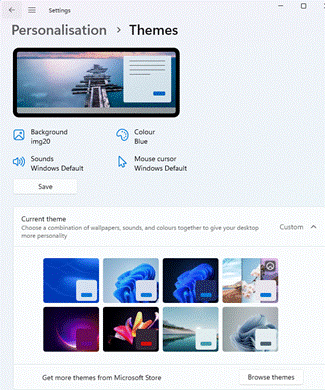
clip_image002Some computer users might put time into customizing their environment, perhaps using themes that specify colours, backgrounds, sound schemes and the like. Themes first arrived on the PC with Windows 95 (even being a billed feature as part of the Plus! Pack) and still persist in Windows 11, though it’s a fair bet that most people leave things as they are, apart from picking a suitable colour scheme from the range of defaults and then setting a personalized background photo.

clip_image003One of the innovations introduced in Windows NT and later into 95 was the ability to have animated cursors – like the old “busy” hourglass icon which was replaced with one which turns over and over, a motif superseded by a pulsing circle for Windows Vista.

clip_image004There used to be whole mouse pointer schemes with fun icons, like the waddling dinosaurs, whose removal between Vista and Win7 caused some angst in end user communities.

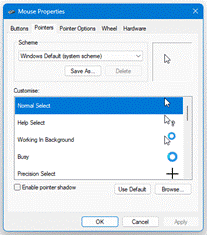
If you feel like introducing some old-world nostalgia, it’s possible to get hold of a variety of static and animated pointers, and then somewhat laboriously add them by clicking the Mouse cursor option in Settings > Personalisation > Themes, which brings up a Windows XP era dialogue to select from one of the preinstalled cursor schemes, and edit each individual pointer …

clip_image006

The Power of Toys

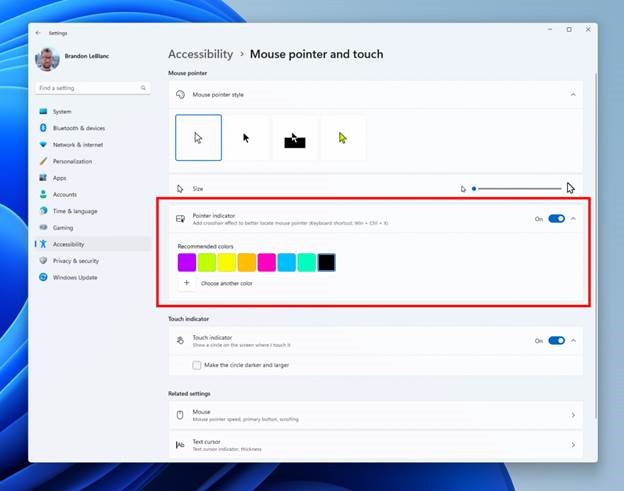
The whole topic of meeces got some fresh news when Microsoft listed a new feature in the latest “Canary” build of Windows, as fed to the most eager of the Windows Insiders program: there’s a new mouse position indicator, which draws a giant crosshair over the top of the screen with the current mouse position at its focus. This kind of thing can be handy for finding a tiny pointer on a giant screen.

clip_image008

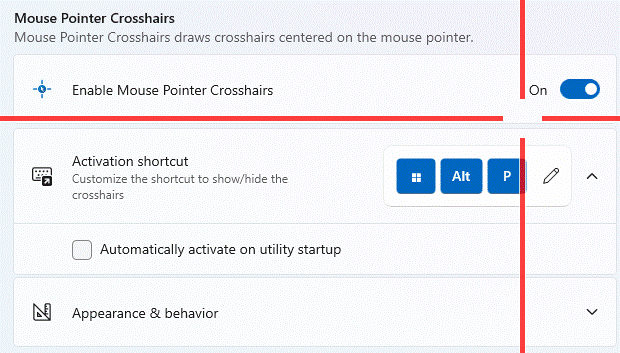
Regular readers might recall that some variant of this feature is already part of the ever-evolving PowerToys add-in for Windows 10 or 11, as discussed in 673 – Where is my mouse?

 clip_image010

clip_image011The Crosshairs option in PowerToys is enabled by a keyboard shortcut though can be a little distracting as it’s persistent until you switch it off again; PowerToys’ other Find My Mouse feature is arguably more useful as it quickly dims the screen then puts a spotlight on where your pointer is, before returning to normal. It can be activated by a double-tap of the control key or you can set it to show up when you shake the mouse.


#14: Meetings are a drag

Last week’s rant on New Outlook’s stupefying licensing enforcement was quickly and neatly responded to by Microsoft Outlook Product Manager, Allen Filush, in a comment and more publicly on a blog post which had neatly been written the week before. Chapeau, Allen… Anyway, a new release of New Outlook also neatly deals with the issue and now allows you to add certain M365 subscriptions that were previously blocked, and should be available now.

The scourge of feature parity

One of the problems inherent in widely used software which has been around a long time, is that of technical debt. Microsoft saddled itself hugely with the effort of backwards compatibility in old versions of Windows; occasionally companies will take the other approach and sacrifice short term user pain for the benefit of moving forward quickly.

It’s never easy building a new application which is intended to take the place of the old, without necessarily replicating all the features of its predecessor. Cutting some obscure shortcut key sequence that application telemetry tells you 0.1% of the userbase ever invokes, will still annoy the 0.02% of those who do it every day. One such deprecation – if you want to call it that – is to be found in New Outlook.

A bit of Drag and Drop history

The metaphors of drag & drop were present at the outset of the Graphical User Interface, as an easy way of moving files around. Other forms of drag & drop have evolved since – like clicking on a tab in your browser, and dragging it off the window to launch a new window with just that tab in, or dragging browser tabs between open windows.

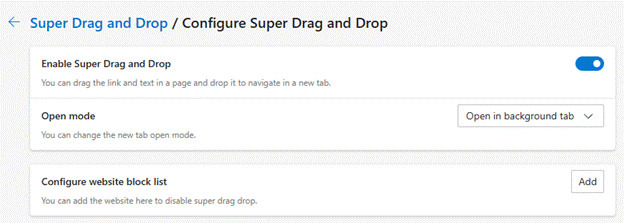
Edge even has an experimental new feature called Super Drag and Drop which lets you open a link in a new tab by dragging it as you click on it.

If you like opening other stuff while reading online articles, but want them to open in a new tab, just hold Control key down as you click on them, or enable Super Drag and do it with a deft flick of the wrist.

clip_image002

To the chagrin of some Windows 10 users, one of the side-effects of the redevelopment / simplification of the taskbar in Windows 11 was the lack of drag & drop support; previously it was possible to drag a file from Explorer and by hovering it over an icon in the taskbar, that app would open up and let you open that file by dropping it in. That was no longer possible in initial versions of Windows 11 but was hurriedly re-implemented.

Outlook Droppings

One handy trick in Old Outlook, was when you wanted to turn an email into a calendar appointment. Some people like to use their calendar as a task list, so if they intend to reserve time for something, they might start from the email they need to work on. In the Outlook Heritage Edition™️ you could simply drag an email from your Inbox to the Calendar icon on the Wunderbar to generate an appointment in your diary with the contents of the email. It might throw away some of the formatting and the attachments etc, but at least it was a start.

clip_image004

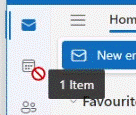
Try doing that in New Outlook and you’ll get less success. You’ll get a little “denied” icon if you try to drop your email onto the calendar node, so what to do? Copy all the contents to the clipboard, switch to calendar, create an appointment and paste the contents in… ?

Quick Steps to the Rescue

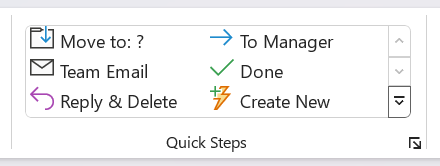
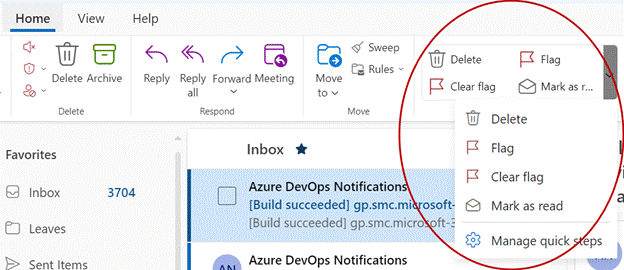
The old Outlook app had a Quick Steps capability where users could define easily-repeatable tasks, like moving an email to a specific subfolder, categorizing it or creating related tasks.

clip_image006

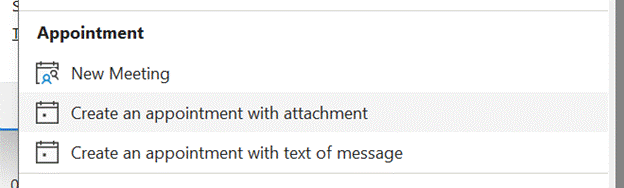
The New Step wizard lets you select from a list of pre-defined templates, including picking up the content of your email and creating a new meeting or appointment with it.

clip_image008

But that’s old Outlook, the one that might one day be replaced by New Outlook. Though some of the decades’ worth of Outlook functionality has been left behind, Quick Steps are not one of them.

clip_image010

That said, not all of the Quick Steps templates carry over – including that thing with the Appointments seen in Dusty Old Outlook. But there is a workaround.

When you put something in your calendar, that’s an appointment. As soon as you invite other people or resources to it, then it’s now a meeting. They are handled differently even though they’re closely related – you save an appointment, you send a meeting request, for example. New Outlook can has a quick step that could be useful.

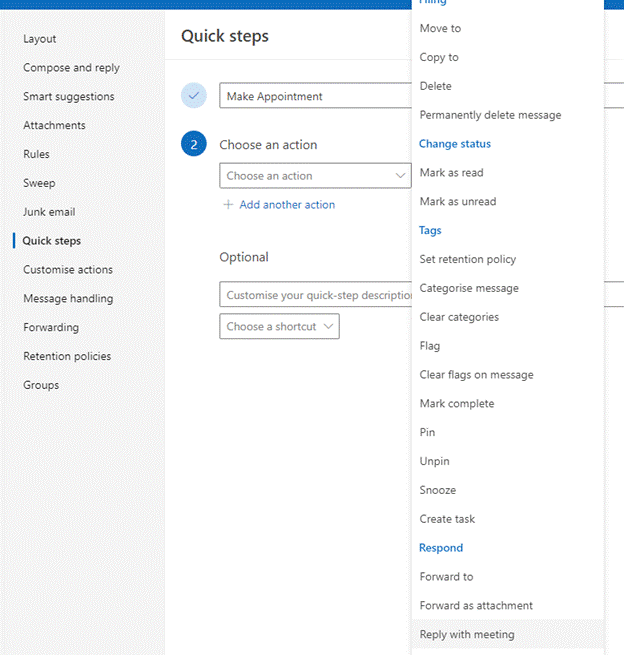
Create a new quick step (by going into Manage quick steps) and near the bottom of the list, you’ll see the option to Reply with meeting. You can add other stuff like assigning categories, putting in a description which will show in a tool tip if you hover over the quick step or give it a shortcut key if you want to use it all the time.

clip_image014

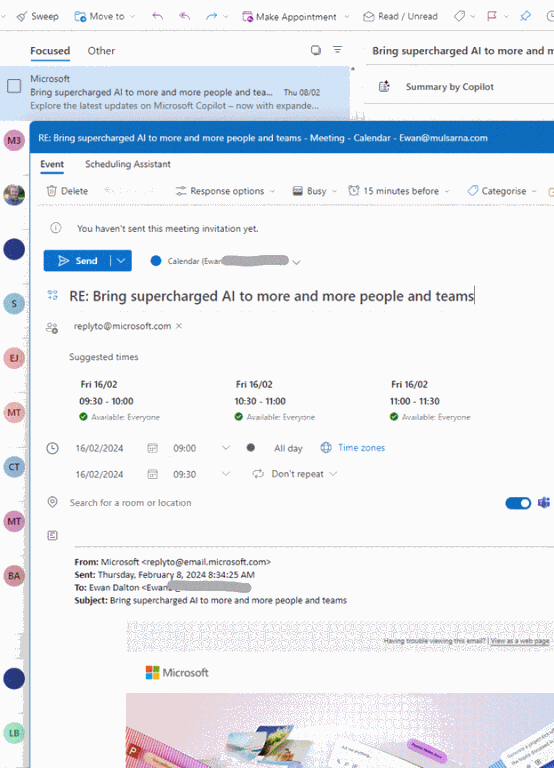
When you click on the new quick step, it will add a new draft meeting to your calendar, insert the recipients of that email to the invitation, and copies the body text of the source message into the main part of the new meeting). It does a better job of formatting than the old Outlook version, but still dumps any attachments, sadly. (A useful scenario could be adding an email about an event with attached PDF tickets to your calendar, but you could always put the attachment in manually, later).

If you remove the attendees (and change the “Teams Meeting” toggle if that’s on by default), you can then simply save the appointment in your own calendar.

clip_image016

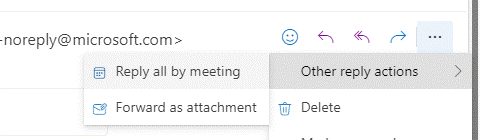
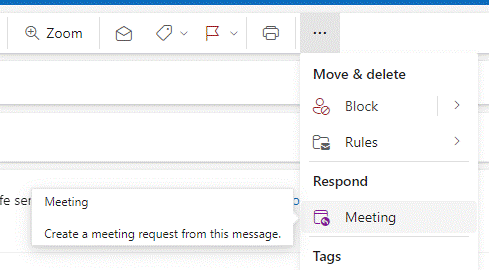
There are other ways of doing the same thing, though the UI is somewhat inconsistent. In the preview pane, if you click the “…” ellipsis at the top right of a message, you’ll see the option to reply with a meeting or forward as an attachment.

clip_image018

Open the message up in its own window and the ellipsis gives a single-click Respond with meeting option:

clip_image020

#13: New Outlook gets in own way

Many people rely on email for their work, and in some cases the inbox and calendar are the primary tools they use. Gen Z’ers might put up a struggle on entering the workforce, preferring to commune via instant messaging or Tik Tok, but for the most part we know that email isn’t going away. Unless you have an alternative product to sell, that is.

The Outlook application that comes with Microsoft 365 and Office suite has been with us since 1997, but can trace some of its roots back some years before that. Students of history may want to delve into the writings of ex-Office supremo (who went on to bring Windows 8 upon the world), Steven Sinofsky, as he revisits some of the tensions between and the decisions being made by the various development teams. There’s a good one on Outlook’s gestation, or the one where BillG gets presented with the idea for the Office Assistant: 042. Clippy, The F*cking Clown.

In a trope briefly discussed last week, we all know how Microsoft has historically loved to use the same name for wildly different things. “Outlook” is one such case – at various times, the core application which has had quite different capabilities during its growth (especially the difficult second album version, Outlook 98) and the name was associated with a whole slew of other products and/or services.

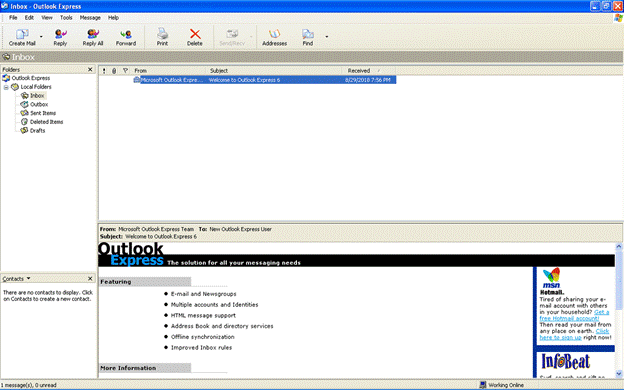
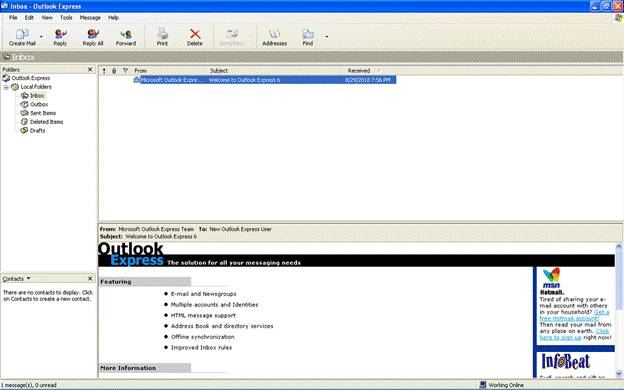
In the Windows 95 / Internet Explorer 3 days, there was a free app called “Microsoft Internet Mail and News” which combined internet email – POP3, IMAP4 – and the long-dead USENET newsgroup infrastructure based on the NNTP protocol. This was rebranded as “Outlook Express” even though it had nothing to do with the main Outlook application; the actual executable file for Outlook Express was still MSIMN.EXE for its whole life…
clip_image002

[Outlook Express … the solution for all your messaging needs…]

The Exchange Server that sat behind much corporate email added a web view of your mailbox back in 1996, called Exchange Web Access, later renamed Outlook Web Access and then Outlook Web App. As the functionality developed, so the old Hotmail.com service was rebranded Outlook.com, and the functionality of Outlook Web App for Exchange users and the free Outlook.com web client converged to a degree, as Outlook.com was moved to the same Exchange-based Microsoft 365 infrastructure.

Then there’s the mobile Outlook apps – Microsoft acquired email and calendaring companies Acompli and Sunrise Calendar, and folded their stuff into the highly-regarded Outlook mobile applications for iOS and Android.

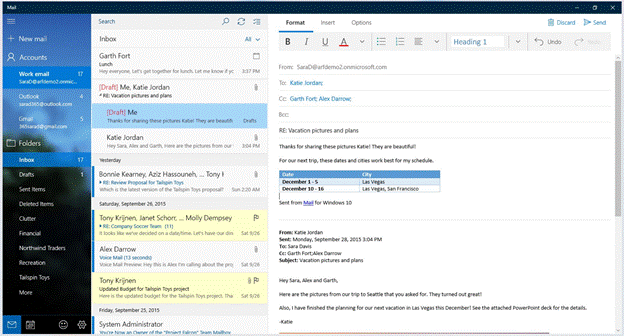
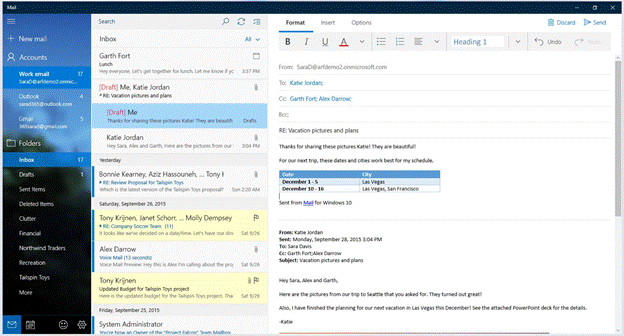
Finally, when Windows 10 released, there were built-in Mail and Calendar applications; in fact, it was the same application under the hood, but it could be started with different criteria which would set how it looked. This app is still available in the Windows Store and came with OG versions of Windows 11. If you delve back to August 2018 and Tip o’ the Week 445 – Finding Modern App names, you’ll see how to find out what “modern apps” are really called within the system; as it happens, under the hood, the Mail and Calendar app was … ms-outlook.
clip_image004

One Outlook to rule them all

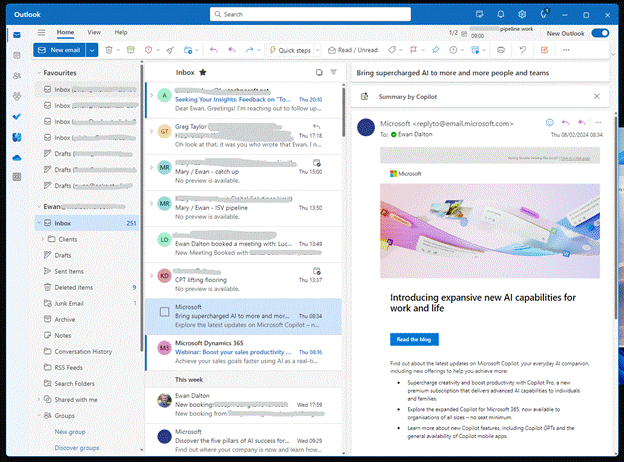
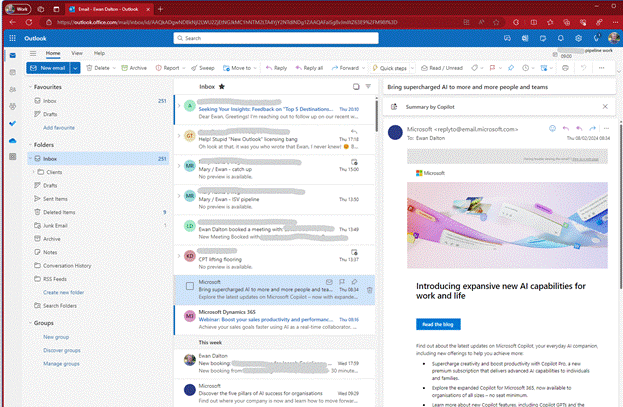
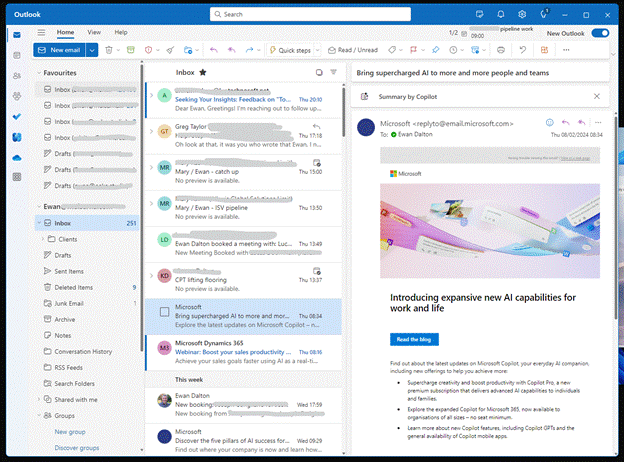
There has been a long held dream in Microsoft of having a replacement for the sometimes creaky old PC Outlook application and the Windows 10/11 Mail & Calendar app, to bring them together under a shiny new application. Sometimes known as “Project Monarch” or “One Outlook”, this new version will use web technologies to effectively be running Outlook Web App but with offline capability, on your PC or Mac.
clip_image006

Spot the difference? The New Outlook above has lots of mail accounts added with different inboxes etc pinned to Favourites. Here’s the same primary mailbox in Outlook Web App:
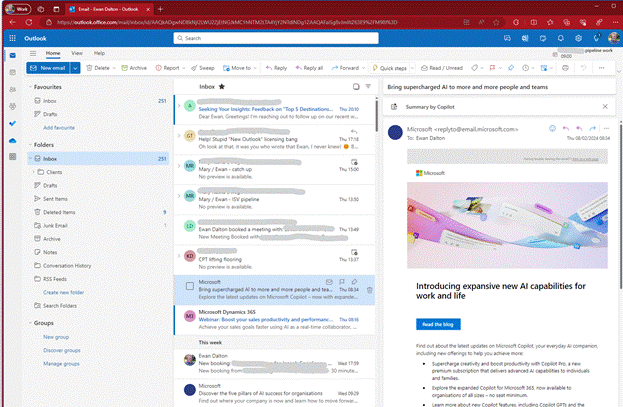
clip_image008

The New Outlook for Windows has been available in preview for a while, and you might be getting nagged to migrate from Windows Mail to try it out, or if your M365 administrator hasn’t switched off the prompt, you could even be getting it in full-fat Outlook.
clip_image010

Having been in Preview for a while, Microsoft announced in September 2023 that this new client is now generally available, and was to be pre-installed on latest versions of Windows 11. By the end of 2024, the old Mail & Calendar apps on Win10/11 will no longer be supported and won’t be available in the Store anymore. It could be a long time coming to migrate desktop Outlook users to the new-fangled version, but the signalling is saying it’s happening someday.

Check those horses

By all means, have a play with the New Outlook – it’s actually pretty good, if you don’t get 10,000 emails every day; in fact, if you have several accounts, it does a better job of keeping on top of them all than old Outlook does (though, arguably, not as well as Mobile Outlook, which lets you see a single Inbox view of all accounts). If you decide to go for it, then you’ll still have access to the Old Outlook app as well (should you need it), and if you’re moving from Windows Mail to New Outlook and don’t like it then the move back should be smooth too.

But currently, there is a gotcha. And it’s the cold hand of license enforcement mistakenly stopping play.

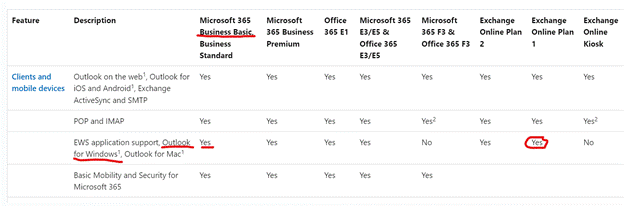
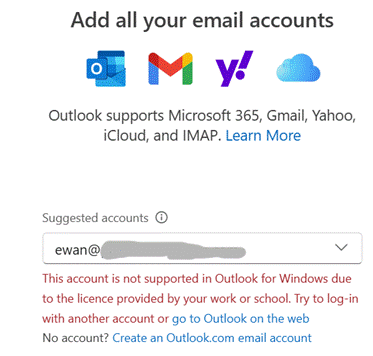
Users of certain M365 subscriptions – Business Basic, or Exchange Online Plan 1 as two examples, are being blocked from using the New Outlook as their license supposedly doesn’t allow it. There is a confusion having a license for a piece of software, and having the rights to use your software against a separately licensed service.

If you look at Compare All Microsoft 365 Plans, you’ll see that Business Basic include “Web and mobile apps only” for Outlook; another way of putting that is “you don’t get the Office applications on your PC or Mac” by buying that subscription. But what if you had the actual software already, through another route? If you have a M365 Family subscription, you can install the Office apps on 6 machines, and there’s nothing stopping you from connecting to a separately-paid-for M365 Business Basic mailbox from your legitimately-licensed Outlook application.

But New Outlook thinks differently. Trying to add a low-cost M365 mailbox gets you an unhelpful error:
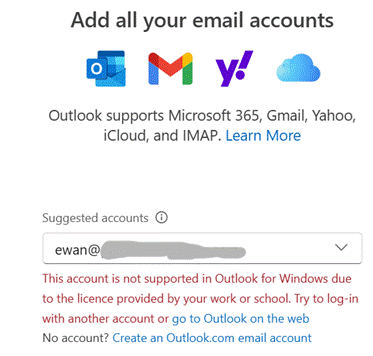
clip_image012

Raise a ticket through official support and you’ll be told “you can access your mailbox by upgrading to a premium subscription”. The irony of “Add all your email accounts” is also not lost (especially since free services like Gmail, Outlook.com and Yahoo! seemingly have no problem), but penny-pinching paid-for Microsoft 365 subscriptions do.

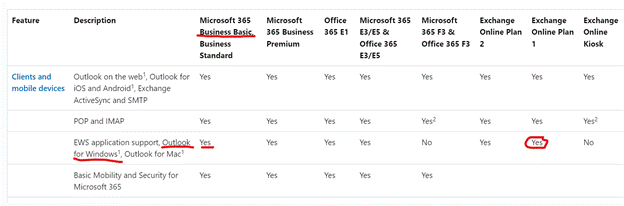
Looking at the Exchange Online Service Description

clip_image014

The service that is being paid for should allow access from “Outlook for Windows”. Regardless of whether that means the full-fat Outlook app that you have to buy, or the freely available “New Outlook”, this document says you can access those mailboxes. But the New Outlook app is now enforcing something different.

Predictably, there are furious users on the internet. The Powers That Be have been made aware and are trying to think up an appropriate way round the issue, apparently. How about, don’t be a Doofus, Rufus? Excellent!
#11: Widgets a Go-Go

There’s been a trend in computing and related technologies running back to the birth of the Graphical User Interface in the 1970s at XEROX, for representing real-life things with digital versions that follow their design.

Take your average Calculator app; its form has changed little from the desktop calculator on which it’s based, or any Calendar application used for organizing appointments which still follows the idea of a planner or physical monthly calendar.
This “skeuomorphic” approach has its pros and cons – it might be easier to pick up a new concept through association with the old way of doing it, but that might over-complicate things in the long run or just take up lots of space.

How many people born in the 21st century have ever used a Floppy Disk, or the non-floppy version that is still widely used as the “save” icon? There’s even a meme about that.
 

When Apple brought out the first Mac forty years ago, the new paradigm of the “gooey” (or WIMP) extended to having a virtual desktop with things on it that might be on or beside your real desk – the wastepaper basket, a clock, a notepad, calendar, inbox and so on. Apple thought of these ancillary programs as “ornaments”, but the Mac and other OSs adopted them as widgets that could run on the desktop behind other application windows.

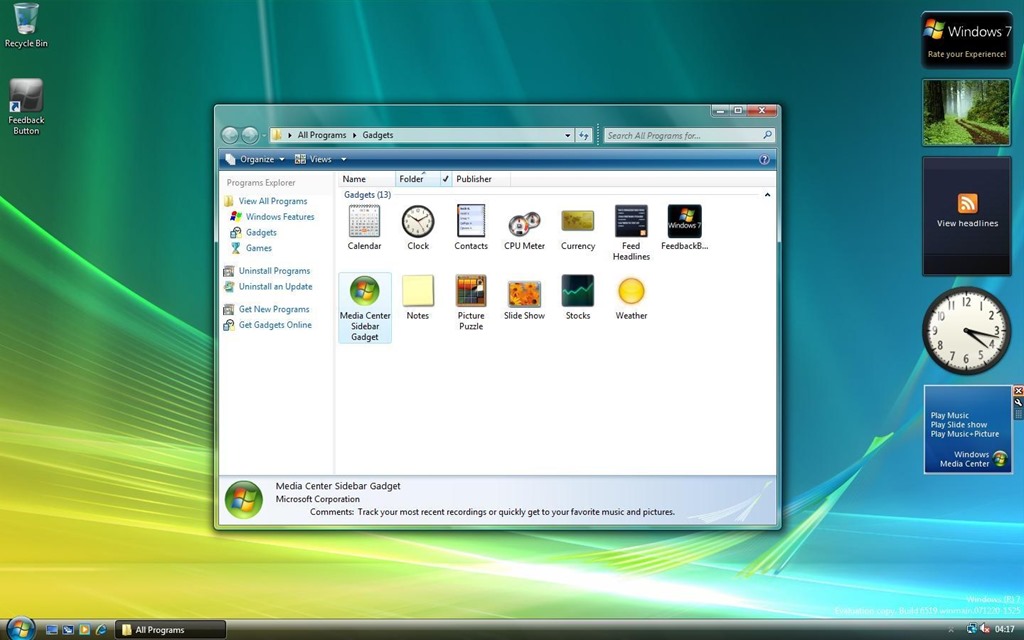
Apple’s commitment to a widget ecosystem has waned and come back to a degree, as has Microsoft’s – remember Gadgets in Windows Vista?

After parading the Sidebar and its gadgets as a new dawn for Windows, the whole thing was killed off after security vulnerabilities rendered it risky.

Widgets in Windows

Windows 11 introduced “Widgets(press WindowsKey+W to get them, or wave your mouse on the lower left of the screen) and later bulked up the UI with the same stuff you get on Microsoft Start, the Edge home page feed and so on, which probably means few people will use Widgets unless they want to find out about that heater that energy companies don’t want you to find out about, or that one thing (do it) that all Android users should know.

Great news, readers! The ability to switch off the “News” section is coming; at the moment, it’s dribbling out to some users on the Windows Insider program but at some point will be more widely available – read all about it here.

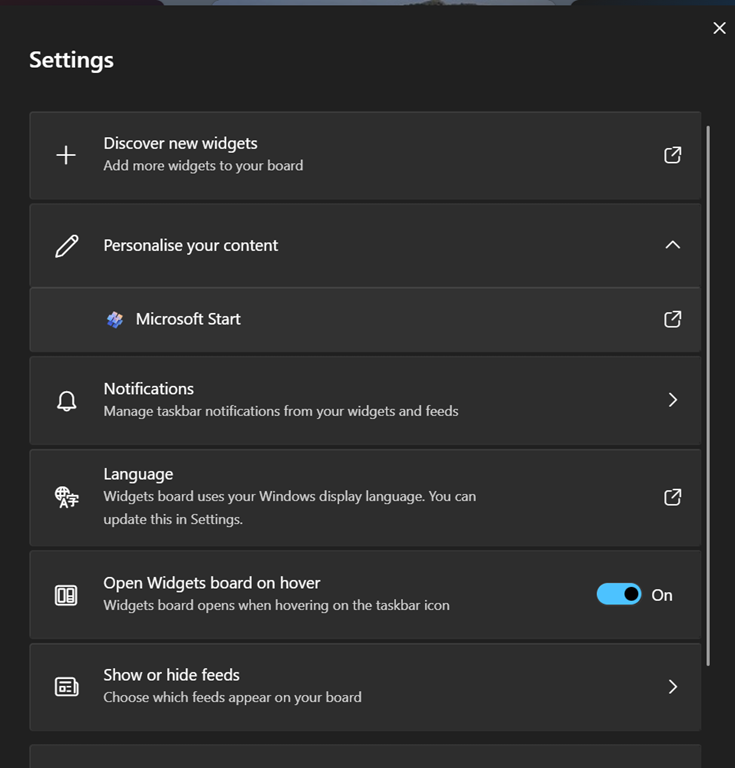
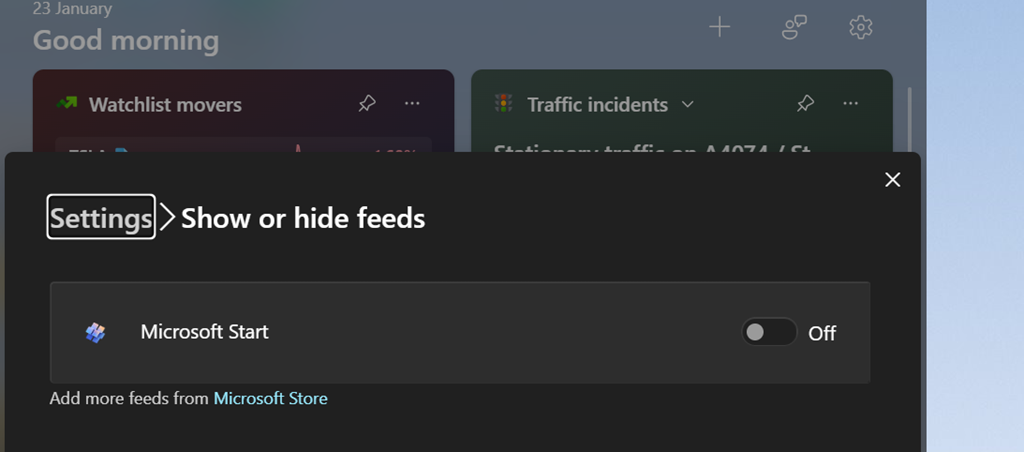
If you get the option (you should see a settings icon at the top of the Widgets board, rather than having to click on your profile photo to get to Settings), you can go into the Show or hide feeds option and be able to switch off the Start feed.

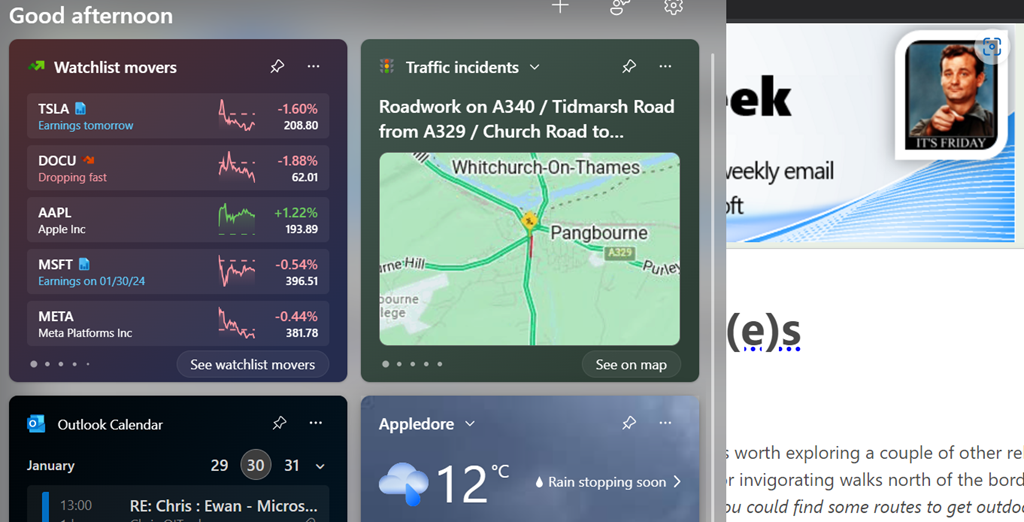
As well as being able to control the entire “feed” of content and present the gadgets on a 2-wide grid instead of a single column to the side, this update lets you choose which account to use to sign in to the Widgety experience, thus allowing users to sign in with their M365 account and use the widgets to surface stull like To-Do lists of tasks, or Outlook Calendar, showing data from their work or school account rather than only the Microsoft Account that it was previously locked to.

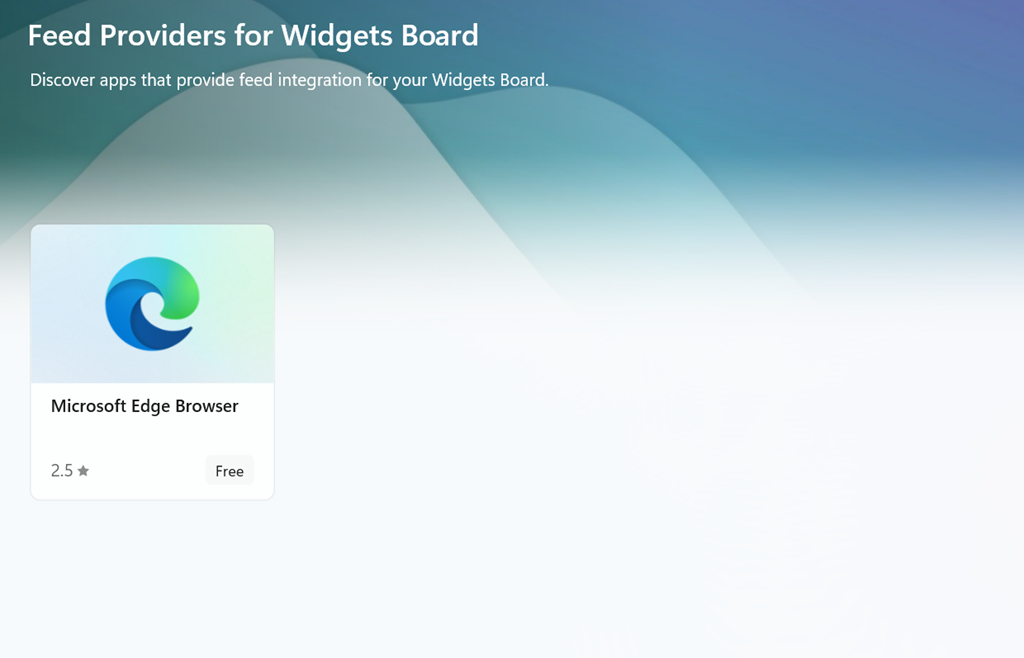
At some point, it looks like the Widgets feeds will be supplemented by other sources besides the Microsoft Start one (via the Add more feeds from Microsoft Store link in the show/hide feeds settings), with enthusiastic content providers lining up to publish their high-quality materials for all to consume…

But not today.


#10: More Mapping Bing(e)s

Following on from last week’s tip on Ordnance Survey mapping, it’s worth exploring a couple of other related topics. Reader Steven Grier recommends Walkhighlands: Scotland walks for invigorating walks north of the border (and not just the Highlands … it also covers Stevie’s native Burns country, so you could find some routes to get outdoors while practicing the forthcoming address).

Another regular, Mike Garrish, suggested looking at SysMaps, which aggregates a variety of different mapping services including Bing Maps. The UI takes a bit of getting used to but it does an effective job and makes up for Bing’s inexplicable removal of being able to export routes to .GPX files, by supporting that feature too.

Bing Maps can trace its lineage back nearly twenty years. Launched back in the days when Microsoft felt it needed to do everything its competitors were doing, even if not quite as well, the service was originally called Microsoft Virtual Earth (or Virtual North America, as one former colleague called it, given that everywhere outside of NA was still TBC; a bit like any sports tournament that has “World Series” in front of it). The Virtual Earth platform was aimed at developers looking to harness mapping in their sites and, later, apps. It offered up sometimes very good quality licensed mapping data and images for free, as part of the “Live” branding and then eventually morphed into being part of Bing. The Bing Maps Enterprise and Azure Maps services now form part of Microsoft’s “Map Platform”.

Start me up

The consumer-facing mapping service clings on despite having no discrete mobile client (in a browser, just go bingmaps.com to jump to it, or the alternative googlemaps.com, should you prefer being asked every five minutes if you’re rather use Chrome). There are mapping components in the expanding Microsoft Start mobile app, which is subsuming various formerly-separate apps like News and Money into a single application. Many of these things were at one point “MSN something”, might later have been lumped under Bing, but are now presented within Start like widgets, unsurprisingly slinging some ubiquitous Copilot in as well.

There’s a Copilot key coming to your next PC, the first major change since the Windows Key arrived with Windows 95, designed to make it easy to bring up the new Start menu. Remember that ‘Stones song? Here’s what it could have been like


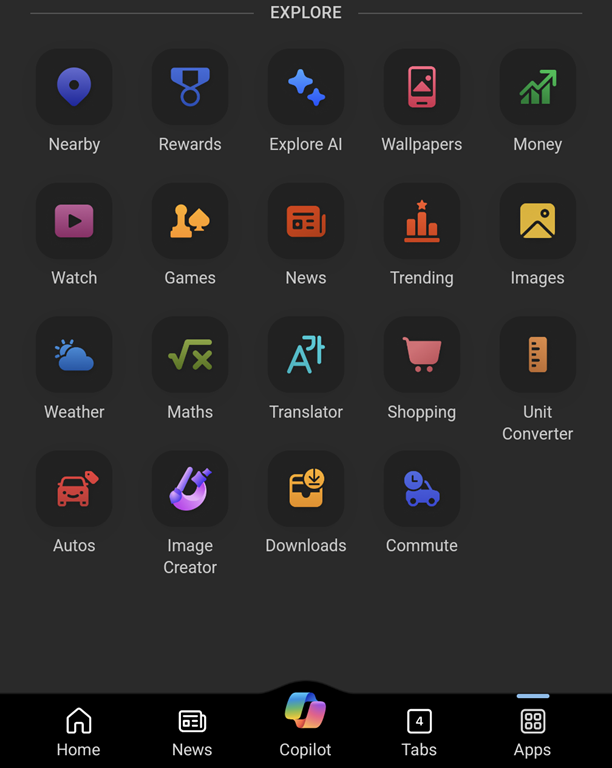
“News” gives you much the same feed as the default New Tab Page on the Edge browser (ie. news from customizable sources, peppered with ridiculous clickbait and stupid adverts… albeit seemingly less so in this instance). From a mapping perspective, there’s a “Nearby” tile which tells you what attractions are close to you, and a “Commute” function which will warn you on the phone when there is trouble on the road ahead.

image

The PC app, Maps, is having its wings clipped somewhat, no longer able to work using offline copies of maps. Place your bets on how much life there is in the Maps app, given that it’s likely no longer going to be installed by default.

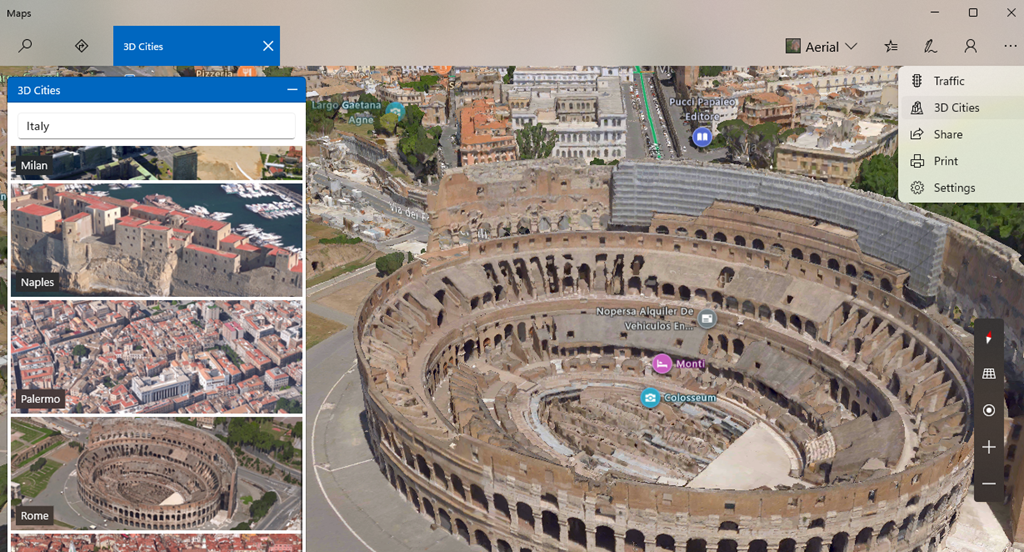
While it is still available, there are some pretty neat things in that app, like adding Ink annotations to maps which are saved on your PC (though not synced across machines) and using a pen to measure distance on-screen. Notably cool and unique to the Maps app (as compared to Bing Maps in a browser) is the 3D Cities feature. This lists quite a number of major and minor cities in the US, though its international coverage is a bit patchy – the only UK city on offer is Southampton, and while Australia has a few, you’ll not be looking out over the Harbour Bridge.

Back to the Streets

The Maps app offers no Ordnance Survey support for UK users but otherwise it basically does what Bing does in your browser.

It is worth noting, though, that the “not nearly as good as Google Street View” service called Streetside has been expanding internationally where it was a bit of a desert when launched first in the US (see earlier “World Series” comment) – in partnership with Tom Tom, Streetside has been adding more coverage though sometimes there’s not much they can do about being unable to go places.

It’s worth checking out Streetside either in the Windows Maps app or just in Bing Maps on a browser; you’ll definitely get a different view from the one you’ll see in Google.

It’s baaaack… Tip OF the Week returns

OnMSFT.comOK, I said it was gone but it’s just been resting.


Tip o’ the Week is no longer the internal email in Microsoft, but was being published weekly on the OnMSFT.com site – as “Tip of the Week”…

[UPDATE – January 2024 – OnMSFT.com has been acquired by another site so may be transitioned, or disappear altogether…]

Tip of the Week #1: That function key most Office users don’t know about deals with function keys in general and in particular that shortcut to repeat the last thing you did in an Office app…

Tip of the Week #2: The OneNote addin everyone needs covers the shift to and from UWP apps and the benefit of moving back to OneNote’s traditional architecture due to the incredible OneTastic addin that is only available on that version.

Tip of the Week #3: Using Multiple Calendars in Outlook – Most people who use Outlook probably know that you can show multiple calendars at the same time, even overlaying them. But have you ever tried using the list view to show a table of appointments instead, so you can see everything that is coming up?

Tip of the Week #4: Calendar sharing using Bookings with Me – Microsoft has had a few goes at making it easier to share your availability with other people, from the basic Free/Busy in Outlook (typically within your organization) to tools like FindTime, which sends a poll to every attendee to get them to vote on the best time for them.

If you’re looking at offering your availability to others – especially if outside your organization – then the relatively new “Bookings with me” is worth a look. Think of it like Calendly but it’s part of (some) M365 packages…

Tip of the Week #5: Time management in & out of Windows – Did you ever have to call the speaking clock or set your watch off the clock at the bottom of the TV news? Fortunately, time setting in Windows is mostly automatic but here are some tips for how to tweak it, how to display other clocks and how to know what the time really is…

Tip of the Week #6: Managing Screenshots – SHIFT+WindowsKey+S is a supremely useful key combination; capturing parts of the screen with Snipping Tool and its numerous variants has long been a handy feature and as it gets updated, it’s getting better all the time.

Tip of the Week #7: Taskbar icons for Edge profiles (and other apps) – How to change the icon on your Win11 taskbar for different profiles of the browser, to make it easier to distinguish between them.

Tip of the Week #8: Juggling with Daylight Saving Time – Handling that awkward period where multiple parts of the world move into a different time, but not all on the same week…

687 – Loop de Loop

clip_image001Sometimes, new application paradigms disrupt the old ways of doing things – like real time messaging could sometimes replace email, or shared online document authoring takes over from working in offline silos. Just as software development methodologies and tools come in and out of fashion amongst the cool kidz, so too does the idea of doing everything online in a browser vs using those fusty old desktop apps that you might have installed.

One new application that springclip_image002 to prominence in recent years is Notion; it showcased a canvas-based approach to colloborative workspaces with components that could be shared and reused in an entirely browser or mobile app based environment.

Notion went from a small startup 10 years ago to a multi-billion valuation, despite initially fending off VC cash. The user base is supposedly skewed to teenage-to-mid-30s, though old timers like Paul Thurrott and the team behind the Windows Weekly podcast notably use Notion to manage the prep notes for each episode. He was initially less than complementary when Microsoft unveiled a similar-looking new service, born out of components of the “Fluid Framework” which been unveiled at Build in 2019 as a new way of doing co-authoring on compound documents.

Loop is the name given to this new Microsoft 365 collab tool, announced in clip_image003preview in 2021 and expanded somwhat shortly thereafter. It’s still a preview – some software companies have products in preview lasting multilple years, even if they don’t ultimately cark it.

Loop can be accessed at loop.microsoft.com either by using a “work or school” account as part of M365, or a Microsoft Account to sign-in to a personal version. Loop mobile apps now have support for personal accounts too. Admins in Microsoft 365 environments need to enable Loop for use – if you visit loop.microsoft.com as an end user and it’s not available, you’ll be told as much and asked to find your IT admin to get them to switch it on.

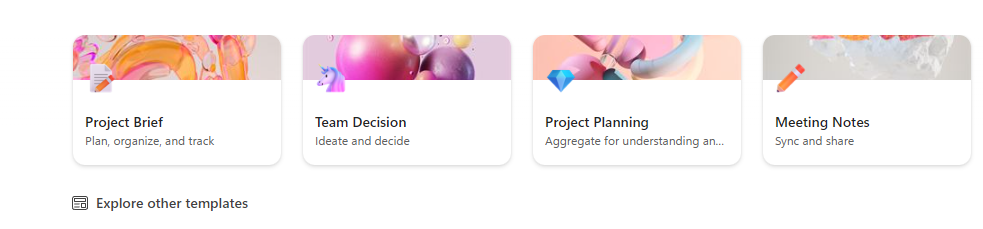
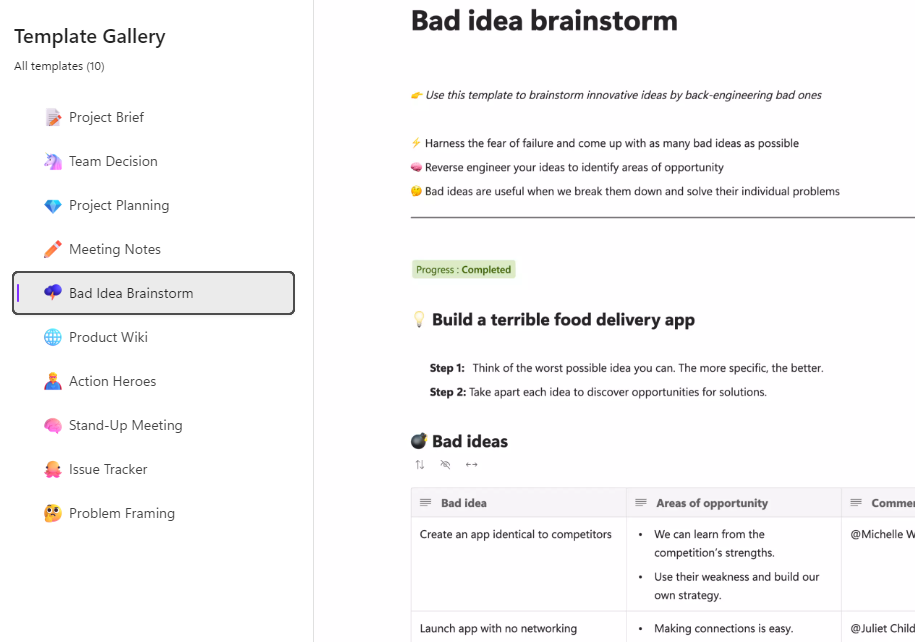
Loop components can belong to a workspace which itself has numerous pages – when you create a new page, you’ll see a selection of templates to get you started:

clip_image004

… and there’s a larger gallery which has more ideas, basically just pre-built pages with a smattering of ready-configured Loop components.

clip_image005

Inevitably, commentators compare Loop and Notion though one major difference is that rather than doing everyting in the online workspace, Loop components can also be shared and embedded within Office documents, emails or in Teams, which is arguably more flexible.

If you copy a Loop component to the clipboard and paste it into an email, you’ll see it embedded – though if using a table in your mail (such as is used in some weekly missives to try to control their layout), you’ll be disappointed as it appears you can’t embed Loop components inside a table.

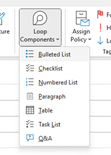
clip_image007Create a new Loop component inside a mail or Teams session, and it won’t be part of an existing Workspace – it’s basically just an attachment but still offers multi-user capabilities. If you insert the component from the menu then it auto-creates the name assiged to that component and there’s nowhere that you can rename it within the email etc.

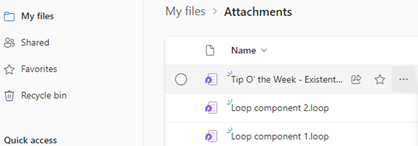
Head over to clip_image009OneDrive and look under My Files / Attachments, and you’ll see the created component – just click the ellipsis to the right and choose Rename from there, and it will show up with that name, wherever you embedded it.

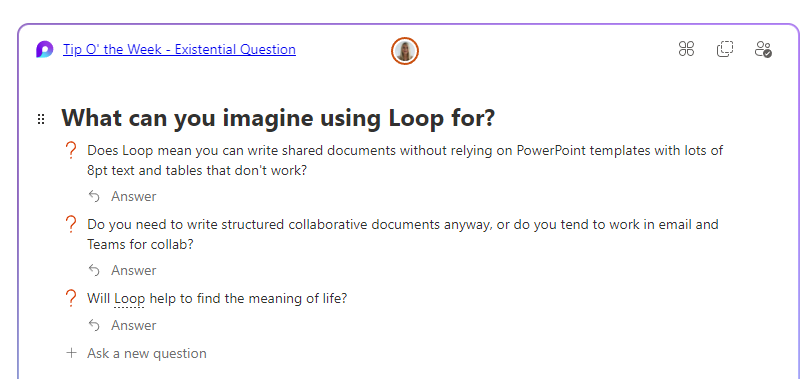
Example:

Screenshot 2023-06-23 093135

686 – What’s that #:~:text?

clip_image002Hypertext was a concept first coined in the 1960s, inspired by an idea in the early 1940s as a way of thinking about organising information. The first practical implementations of Hypertext let a document or application reference a link to some other content, just as we now know web hyperlinks to do. It’s no wonder that when Sir Tim was conceiving the means of writing what came to be pages on the web, he envisaged hypertext – or even hypermedia – as the glue that holds it all together.

True hypertext documents or applications don’t just link pages to each other, but specific contents – it could be a fly-out or a pop-up with a definition of what a specific term was, or it might be a link that jumps into a particular part of a longer document.

clip_image004

Many web pages have bookmarks defined within – eg Wikipedia typically has links on the left side which jump to parts later in the document, and the bookmark is added to the end of the URL – like https://en.wikipedia.org/wiki/Hyperlink#HTML

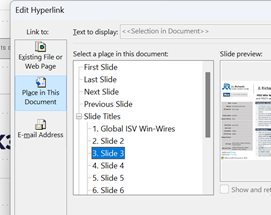
Office docs offer similar things – Word and Outlook have Bookmarks, PowerPoint can have hyperlinks inside slides that jump to a different slide etc.

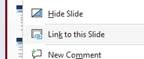
If you look at documents stored on OneDrive or SharePoint, it’s often possible to create a link directly from within the full fat Office application, to a part of that document – eg clip_image006in PowerPoint, right-click on a slide in the sorter view and it will display a URL to that specific slide, that you could share or link from elsewhere.

When dealing with web pages, there are some other tricks you can do to jump straight to a part in the page, even if that page itself has not defined the bookmarks for you to reference like the Wikipedia one above. The WWW Consortium fairly recently defined a standard for handling “Text Fragments”, which means you could link to a specific phrase on a page. Clicking the link will navigate to that point on the page and highlight the text. This is done with a strange looking tag at the end of the URL: #:~:text=whatever.

Example: one of the most-visited articles in the TipoWeek archive, Killing me Softly, part I (a wistful post looking back at some of the Microsoft tech which has ceased to be) has a part which deals with the audio file format, Windows Media Audio – see it on https://tipoweekwp.azurewebsites.net/2016/10/21/tip-o-the-week-350-killing-me-softly-part-i/#:~:text=Windows%20Media%20Audio.

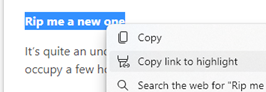
clip_image008Handily, if you want to generate a link straight to a word or phrase on a page, both Edge and Chrome offer a feature if you right-click on some text on the page – it may use other text fragment features to help steer to this specific piece of text, rather than just the first time that phrase appears on the page. See it in action, here.

685 – Browser searching

Screenshot 2023-06-06 181351Research from a couple of years back showed that the most-searched-for term on Bing.com was “google”. While it seems crazy that people would type the name of a search engine into the search box of another, it’s possible they were entering “google” into a box on their homepage or even in the browser address bar, and that term was sent to bing.com as a query, rather than sending the browser to google.com.

If you’re using Edge and have Bing as the default search experience – other search engines are available – then you may see the prominent search box in your new tab page, but it’s worth remembering that the address bar at the top of the browser is also a search box. You can jump to the address bar in Edge or Chrome by pressing ALT+D, which also selects the current site’s URL (if there is one) so you can edit it or just replace by typing something else.

clip_image004If you start putting the name of a site into the address bar, you’ll be offered autocomplete suggestions from your favourites and your previous browsing history, so it may be very straightforward to jump to not just the website but a specific and previously accessed page within.

Entering a site name and pressing CTRL+ENTER will add the https://www. and .com bits so you don’t need to; therefore, to go to the BBC website, you could press ALT+D bbc CTRL+ENTER and you’d go there directly.

Although the address bar will ultimately use your default search engine to query a word or phrase that doesn’t appear to be a web site address, you can force it by starting to type ? in the address bar, then enter your search term after the question mark.

clip_image006Some sites will allow the browser to search within them by adding the site name and then pressing TAB. Whatever text you enter after the TAB will be sent to the specific search page of that site. Not all sites support this method, but many common ones do, like Twitter, Amazon, YouTube and more.

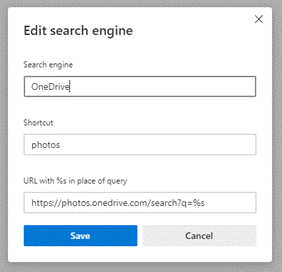
clip_image008Go to the search engine settings in Edge (or jump to the address bar and enter edge://settings/searchEngines) to see which sites are set up already. You can add your own “search engine”, which means you can direct Edge how to search within that site.

Click Add to include one of your own, using the appropriate site URL while replacing the bit where the search term is specified with %s – eg searching the OneDrive photos section for “dogs” would give a URL of https://photos.onedrive.com/search?q=dogs.

Give the Search Engine a shortcut name you want to use and then paste the modified URL and hit save. Now, in this example, typing photos | TAB | cats | ENTER would seach OneDrive for cat pictures.

If you are a Microsoft 365 user then you might be able – if it’s been enabled for your tenant – to search internal work documents and Sharepoint sites, just by typing work | TAB | etc. It’s on by default, but admins could also give you custom keywords / shortcut words too.

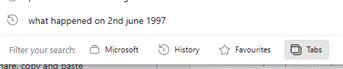
clip_image010Finally, on the topic of Searching in the browser, it’s possible to search across all the tabs you have open; start typing something in the address bar and you’ll see the option of filtering that search to apply to Work, history, favourites or tabs.

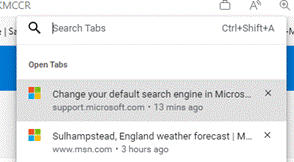
clip_image012Alternatively, press CTRL+SHIFT+A to kick the search off, type in the word of phrase you’re looking for and it will filter the list of current tabs to show only ones that match.

To quickly jump to that tab, use the up and down keys to select the one you want, and press Enter.

684 – Teams, Countdown, Go!

clip_image002The word “Go” has so many connotations for such a couple of letters. It’s typically upbeat & positive, forward-looking and action-oriented. You get £200 for breezing past it in Monopoly, it’s the oldest board game known, it’s a popular open-source programming language and it’s what the Thunderbirds do.

Back in April 2021, ToW #574 talked about sharing a countdown timer in Teams, if you want to make it clear in a meeting that it’s about to get underway. That was by sharing the application window of a countdown clock, meaning that it would replace any other desktop sharing/slides etc being shown.

Also, the timer will loom very large on the screen of everyone watching, which could well be effective though maybe lacking some of the subtlety you’d prefer.

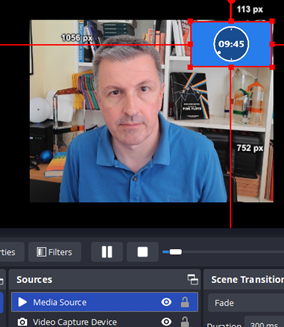
clip_image004A more nuanced tip would be to overlay a timer on your own video feed, so you could make the point that things are about to change, and it could be shown alongside other content or whatever else might be happening in the meeting.

Depending on how you do it, the timer could disappear altogether when it has finished, and you’d carry on with the video as before. You might even want to replace your own camera feed with a backdrop and timer until you’re ready to go and show your face.

One recommended way to achieve this effect is to use OBS Studio, open source software which started life as a kind of video manipulation tool aimed at recording or streaming, and has grown to offer a host of features and plugins to modify and manipulate video in real time. It can look a bit scary to start with, but the basics can be picked up quickly.

OBS Studio can apply a series of effects to one or more video sources – could be the real-time recording of windows showing a live demo or a physical camera, with some other stuff like a video file, overlaid on top. You can go down a rabbit-hole of effects (like put a real-life green screen behind you, then chroma key a backdrop or video onto your own video feed – see Scott Hanselman’s tutorial for inspiration).

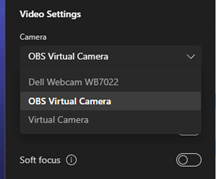
clip_image006OBS also includes a virtual camera driver, so while you’re running the software and combining several sources – like a real camera and one or more media sources overlaid on top (along with selected effects) – OBS will combine everything to look like it’s a camera feed that can be selected in Teams, Zoom or any other software that could use a video input.

A simple trick could be to add only a countdown video to OBS and then choose the OBS Virtual Camera in Teams; it will display the video instead of your camera feed, and then when you’re ready to get going, just change the video settings in Teams to go back to your own webcam.

There are plenty of sources online for free countdown videos – here or here for example; download the file, add it to OBS as a Media Source and you’re off. If you’d like to take it up a level, here’s a more in-depth tutorial, and you can even script your own custom ones if you like to delver deeper into OBS features.